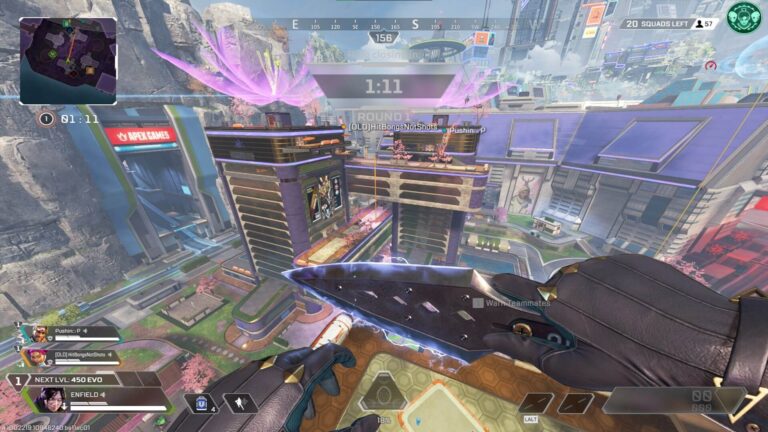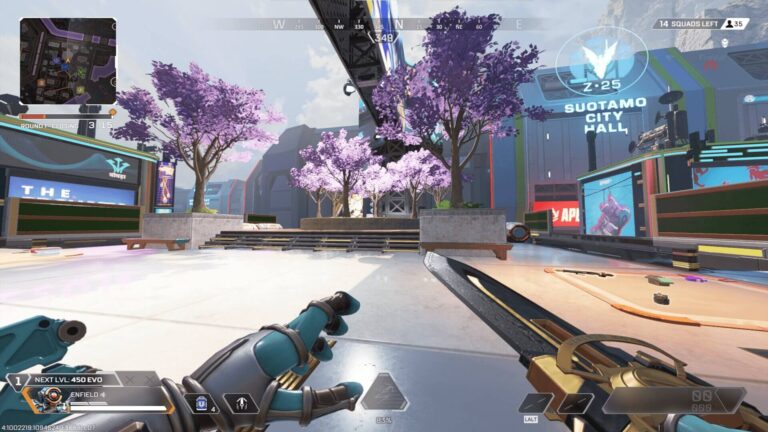

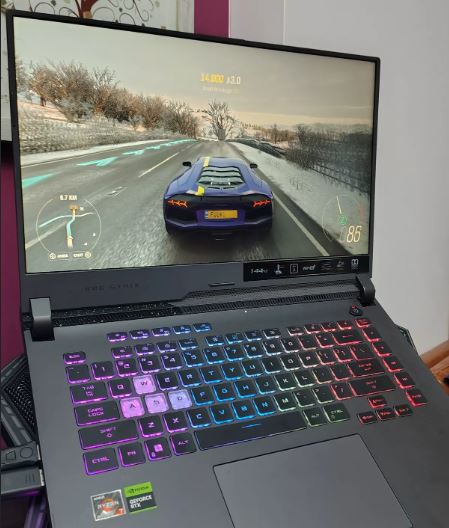
Have you ever felt like you clicked first—but still lost the fight? That delay between your action and what happens on screen is called input lag. Simply put, input lag is the time it takes for your actions (mouse clicks, key presses) to register and appear in-game. In competitive FPS games like Apex Legends and Valorant, even a small delay can make the difference between winning and losing a fight.
Why Input Lag Matters
Input lag is measured in milliseconds (ms):
- Lower ms = faster response
- Higher ms = noticeable delay
The goal is simple: Reduce input lag as much as possible to make your gameplay feel more responsive. Many players blame their aim—but sometimes, the real issue is their setup.
Things like:
- Your mouse
- Keyboard
- Display
- System settings
All affect how quickly your actions are registered. In this guide, you’ll learn how to reduce input lag in FPS games, improve responsiveness, and get the most out of your setup.
What Causes Input Lag?
Input lag can be caused by several factors, including your hardware, display, system settings, and gaming peripherals. Even small delays from different components can add up and make your gameplay feel sluggish or unresponsive.
Hardware Limitations
Your hardware plays a major role in overall responsiveness.
GPU Performance
Low FPS is one of the biggest causes of input lag in FPS games.
The lower your FPS:
- The slower frames are rendered
- The more delayed your gameplay feels
This is why competitive players prioritize:
- High FPS
- Lower graphics settings
V-Sync
V-Sync is known for increasing input lag because it synchronizes your FPS with your monitor’s refresh rate. While it reduces screen tearing, it also introduces noticeable delay in competitive games.
For FPS titles, it’s usually recommended to:
- Disable V-Sync
- Prioritize responsiveness instead
CPU Usage
If your CPU is constantly running at 100% usage:
- It takes longer to process game information
- Delays communication between components
Running too many background applications can increase input lag significantly.
Storage Devices
Storage speed also affects responsiveness.
- HDDs are much slower
- SSDs load textures and game data far faster
This is why SSDs—especially NVMe SSDs—are highly recommended for gaming.
In-Game and System Settings
Some settings can increase input lag without players realizing it.
Common Settings That Increase Input Lag:
- V-Sync
- Triple buffering
- High render resolution
- DLSS/FSR quality modes (in some cases)
Competitive players often use optimized low settings for faster responsiveness.
Display and Monitor Response Time
Your display also affects how responsive your game feels.
Common Monitor Panels
TN Panel
- Fastest response times
- Best for competitive gaming
- Weaker viewing angles and colors
IPS Panel
- Balanced option
- Good colors + solid response times
- Most recommended overall
VA Panel
- Slower response times
- Can introduce noticeable ghosting/input delay
OLED Panel
- Best image quality
- Extremely fast response times
- Most expensive option
Gaming Peripherals
Your peripherals can also add input delay.
Mouse
Two major factors matter:
- Sensor quality
- Click latency
Cheap “no-name” gaming mice often use poor laser sensors, which perform badly in fast-paced FPS games.
A good gaming mouse should have:
- Reliable sensor
- Low click latency
- Consistent tracking
Keyboard
Keyboard switch type affects responsiveness.
Optical Switches
- Fastest response times
- Best for competitive gaming
Mechanical Switches
- Very responsive
- Most popular among gamers
Membrane Keyboards
- Slowest response
- Mushy feel
- Not ideal for FPS gaming
Headsets and Audio Delay
Audio also affects reaction time.
A headset with poor directional audio can delay how quickly you react to footsteps or gunshots.
Good gaming headsets improve:
- Audio positioning
- Awareness
- Reaction speed
How to Reduce Input Lag in FPS Games
Reducing input lag is all about improving how quickly your system responds to your actions.
Here are the most effective ways to reduce delay and make your gameplay feel smoother and more responsive.
Windows Optimization Settings
Your operating system can affect performance more than most players realize.
Disable Startup Apps
Many applications automatically launch in the background when your PC starts.
These apps consume:
- CPU resources
- RAM
- Background processing power
This can increase input lag during gaming sessions.
How to Fix It:
- Open Task Manager
- Go to the Startup Apps tab
- Disable unnecessary applications
Close Background Applications
Before gaming:
- Close browsers
- Exit unnecessary software
- Reduce CPU and RAM usage
Lower system load = better responsiveness.
NVIDIA Control Panel Settings
If you use an NVIDIA GPU, these settings can noticeably improve responsiveness.
Turn Off V-Sync
V-Sync increases input lag by synchronizing FPS with your display refresh rate.
For competitive FPS games:
- Keep V-Sync OFF
Power Management Mode
Set:
Power Management Mode → Prefer Maximum Performance
This prevents your GPU from reducing performance to save power.
Enable Low Latency Mode
Set:
Low Latency Mode → On or Ultra
This reduces the number of queued frames and improves responsiveness.
Disable NVIDIA Overlay
The NVIDIA overlay can slightly increase latency and reduce performance.
Disable:
- Instant Replay
- Overlay features
- Background recording
Texture Filtering & Threaded Optimization
For maximum responsiveness:
- Lower texture filtering quality
- Test Threaded Optimization ON/OFF depending on your game
(Some systems perform differently.)
In-Game Settings to Reduce Input Lag
Your in-game settings have a huge impact on responsiveness.
Use Fullscreen Mode
Fullscreen mode gives games direct access to system resources, reducing delay.
Avoid:
- Borderless fullscreen
- Windowed mode
Turn Off V-Sync
Again:
Disable V-Sync in-game for lower latency.
Enable NVIDIA Reflex (If Supported)
Set:
NVIDIA Reflex → On + Boost
This is one of the best settings for reducing system latency in supported games.
Lower Graphics Settings
Competitive players often use:
- Low settings
- Medium textures
Lower settings:
- Increase FPS
- Reduce rendering delay
- Improve responsiveness
Best Gear for Low Input Lag
Having the right settings helps, but your hardware and peripherals also play a huge role in reducing input lag.
Here are some of the best budget-friendly gaming peripherals for responsive gameplay.
Best Gaming Mouse for Low Input Lag
Razer Cobra
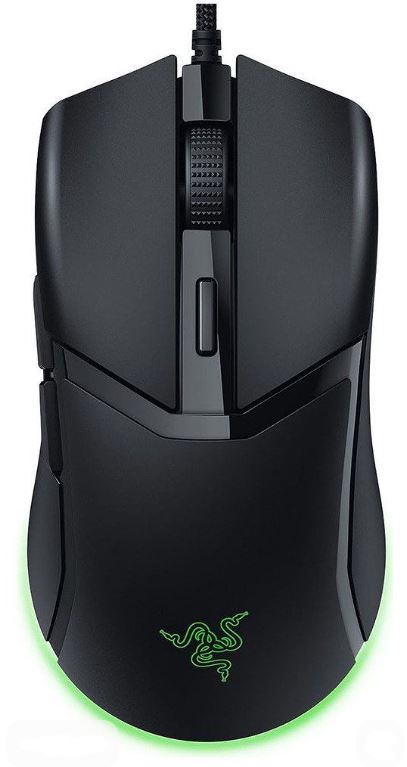
The Razer Cobra is one of the best budget gaming mice for competitive FPS games.
Why It’s Great for Low Input Lag
- Extremely low click latency
- Premium optical switches
- Accurate sensor for fast tracking
- Lightweight design for quick movements
Even though the scroll wheel durability isn’t the best, the responsiveness and sensor quality make it excellent for competitive gaming.
If you want more options, check out the best budget gaming mouse for FPS.
Best Gaming Keyboard for Low Input Lag
Logitech G413 TKL SE
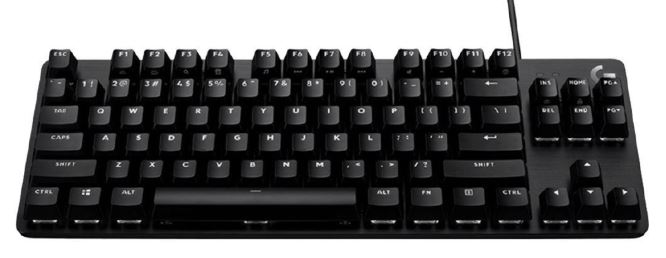
The Logitech G413 TKL SE is a strong option for responsive gaming.
Why It’s Great for Low Input Lag
- Fast and responsive switches
- TKL layout gives more desk space for mouse movement
- Durable aluminum build
- Comfortable key spacing for gaming
While the cable isn’t braided, the overall responsiveness makes it a great FPS keyboard.
You can also explore the best budget gaming keyboards for FPS for more options.
Best Gaming Headset for Low Input Lag
HyperX Cloud Stinger 2
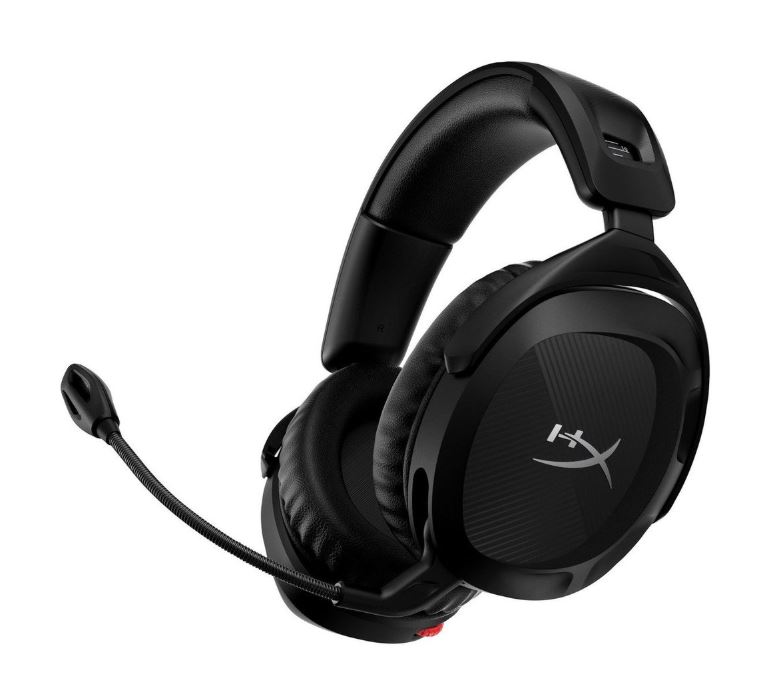
The HyperX Cloud Stinger 2 is one of the most popular budget gaming headsets.
Why It’s Great
- Comfortable for long sessions
- Strong bass and clear audio
- Good directional sound for footsteps
- Durable and lightweight design
Great audio positioning can improve reaction time and awareness in FPS games.
For more options, check out the best budget gaming headsets for FPS.
Best Gaming Laptop for Low Input Lag
Acer Nitro 5
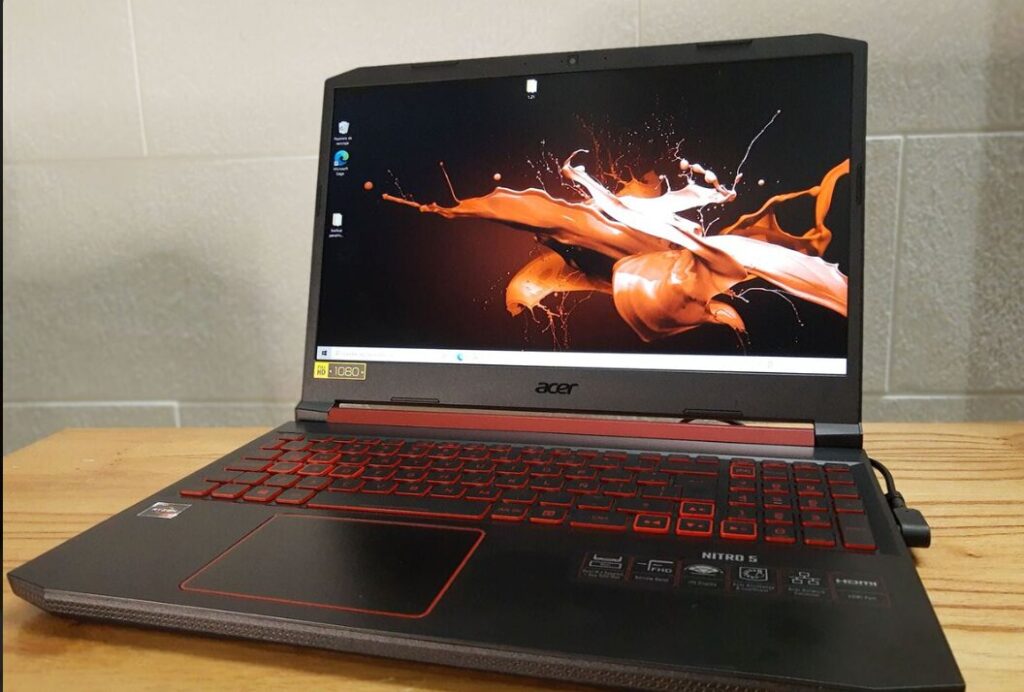
The Acer Nitro 5 remains one of the best budget gaming laptops for responsive gameplay.
Key Features
- NVIDIA RTX 4050 GPU
- Supports DLSS and Frame Generation
- 165Hz display for smoother gameplay
- Strong cooling performance
Higher refresh rate displays and stronger GPUs help reduce perceived input delay and improve overall responsiveness.
If you want similar options, check out the best gaming laptop under $800 for Apex Legends.
Common Mistakes That Increase Input Lag
Many players unknowingly increase input lag because of poor settings and bad gaming habits
Here are some of the most common mistakes to avoid:
Playing With V-Sync Enabled
V-Sync is one of the biggest causes of input lag in competitive FPS games.
While it helps reduce screen tearing, it also delays how quickly frames are displayed.
For competitive gaming:
- Keep V-Sync OFF
- Prioritize responsiveness instead
Playing on Low FPS
Low FPS directly increases perceived input delay.
The lower your FPS:
- The slower frames render
- The less responsive the game feels
This is why competitive players often use:
- Lower graphics settings
- Performance-focused configurations
Too Many Background Applications
Applications running in the background consume:
- CPU usage
- RAM
- System resources
This can cause:
- Stutters
- Delayed response
- Higher latency
Before gaming:
- Close browsers
- Disable startup apps
- Reduce unnecessary processes
Using Cheap Generic Gaming Peripherals
Low-quality gaming mice and keyboards often have:
- High click latency
- Poor sensors
- Inconsistent tracking
A good gaming peripheral improves responsiveness and consistency significantly.
Gaming on TVs Instead of Monitors
Most TVs are designed for media consumption, not competitive gaming.
TVs usually have:
- Higher response times
- Increased input delay
For FPS games, a proper gaming monitor is always recommended.
Using Borderless or Windowed Mode
Borderless fullscreen and windowed mode can increase system latency.
For best responsiveness:
- Use exclusive fullscreen mode whenever possible
Conclusion
Reducing input lag is one of the best ways to improve your performance in FPS games.
Even small delays can affect:
- Aim
- Movement
- Reaction time
- Overall consistency
The good news is that most input lag problems can be improved with the right settings, optimized hardware, and responsive gaming peripherals.
You do not need the most expensive setup to get responsive gameplay—you simply need the right balance of:
- High FPS
- Proper settings
- Good peripherals
- Optimized system performance
Whether you’re playing Apex Legends, Valorant, or Counter-Strike 2, reducing input lag can make your gameplay feel smoother and more responsive.
And if you’re looking for a complete responsive gaming setup, check out the best gaming setup under $1000 for a full budget-friendly competitive setup.