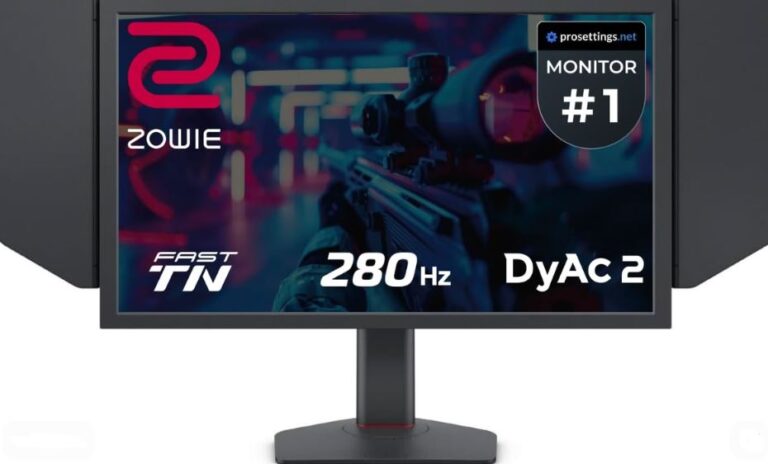

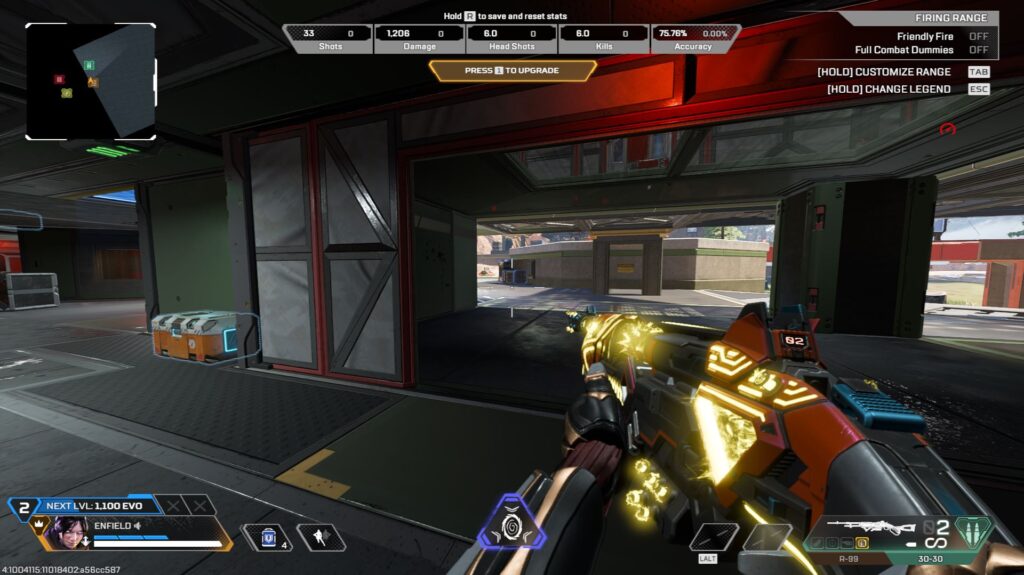
In competitive FPS games, the best settings are not always the most visually impressive ones. Professional and high-ranked players often lower their graphics settings to maximize:
- FPS (Frames Per Second)
- Responsiveness
- Visibility
- Input latency performance
Because in competitive gaming, every millisecond matters. Games like Apex Legends, Valorant, and Counter-Strike 2 are designed around competition—not cinematic visuals.
The goal is not just to make the game look good.
The goal is to:
- react faster,
- aim more consistently,
- and maintain stable performance during fights.
That’s why even players with powerful gaming PCs often use:
- low settings,
- reduced visual effects,
- and optimized performance configurations.
Why FPS Settings Matter
Proper FPS settings can:
- Increase frame rates
- Reduce input lag
- Improve visibility during fights
- Make gameplay feel smoother and more responsive
Even small performance improvements can make a noticeable difference in competitive games.
In this guide, you’ll learn the best FPS settings for competitive gaming, including graphics settings, display settings, and optimization tips to maximize performance and responsiveness.
Why Professional Players Use Low Settings
Professional players play with one goal in mind: winning. That’s why almost every setting they use has a purpose behind it. In competitive FPS games, low settings are preferred because they provide:
- Higher FPS
- Lower input lag
- Better visibility
- More consistent performance
Stable FPS Matters More Than Maximum FPS
Many players think competitive gaming is only about getting the highest FPS possible.
But professional players focus more on:
- Stable frame rates
- Consistent 1% lows
- Smooth gameplay during fights
For example, even if a high-end GPU like the NVIDIA GeForce RTX 5080 can run a game at 300+ FPS, players may still cap their FPS around:
- 180 FPS
- 240 FPS
This helps maintain stable frame pacing and smoother gameplay consistency.
Better Visibility During Fights
Competitive players remove unnecessary visual effects because they create visual clutter.
Settings such as:
- Motion blur
- Bloom
- Dynamic shadows
- Hair movement
- Fabric simulation
- Weapon effects
Can make enemies harder to see during fights. These settings also consume valuable GPU and VRAM resources without improving gameplay performance. That’s why professional esports players usually disable them completely.
Lower Input Lag
Certain settings can noticeably increase input latency.
Common examples include:
- V-Sync
- Windowed mode
- Borderless fullscreen
Competitive players usually prefer:
- Fullscreen mode
- V-Sync OFF
- Low-latency optimization settings
This makes gameplay feel faster and more responsive.
Console vs PC Graphics Settings
PC gaming offers much deeper graphics customization compared to:
- PlayStation
- Xbox
This allows PC players to:
- Optimize performance more aggressively
- Reduce distractions
- Prioritize responsiveness over visuals
The Competitive Gaming Mindset
Competitive gaming is not about making the game look cinematic.
It’s about:
- Seeing enemies clearly
- Reacting faster
- Maintaining stable performance during intense fights
That’s why professional players optimize every setting possible. If you want the best universal FPS settings for competitive gaming, let’s get into the actual settings you should use.
Best Graphics Settings for Competitive Gaming
These universal competitive settings are designed to:
- Increase FPS
- Reduce input lag
- Improve visibility
- Make gameplay feel smoother and more responsive
The goal is not maximum graphics quality—the goal is competitive advantage.
Resolution & Display Settings
Resolution
Resolution determines how many pixels your screen renders.
Higher resolutions:
- Look sharper
- Use more GPU power
- Can reduce FPS
For competitive gaming, the most common resolution is: 1920×1080 (1080p)
because it offers:
- Good clarity
- High FPS
- Better overall performance
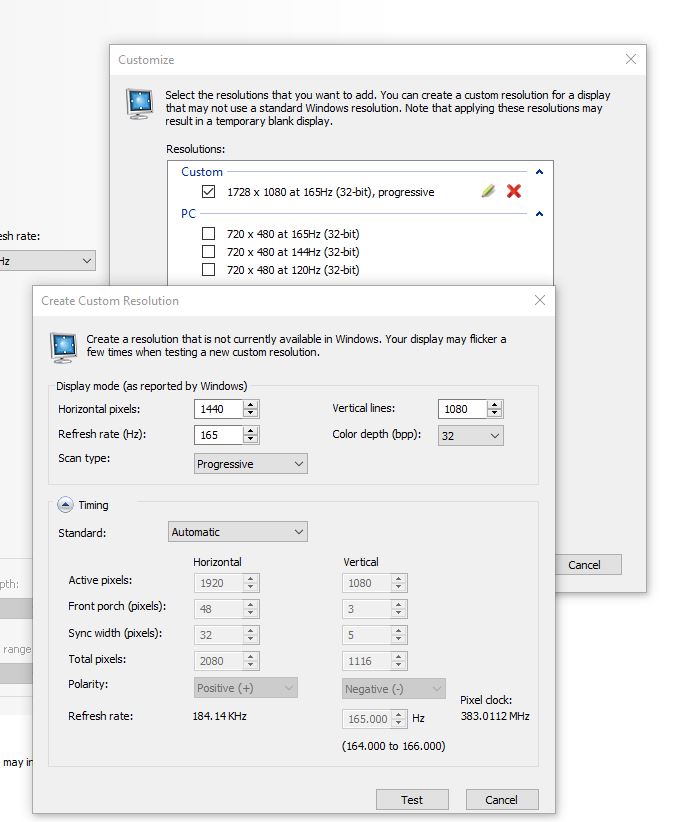
Stretched Resolution
Many competitive players use stretched resolutions because they:
- Make enemies appear wider
- Increase visibility
- Reduce GPU strain slightly
Popular stretched resolutions include:
- 1728×1080
- 1440×1080
- 1920×1440
Recommended Stretched Resolution
- 1728×1080
This is one of the best balanced stretched resolutions because it:
- Makes enemies slightly wider
- Maintains good image clarity
- Provides strong performance gains
1440×1080 is also popular in Counter-Strike 2 because enemies appear significantly wider.
Aspect Ratio
Aspect ratio determines the width and height proportions of your screen.
Examples:
- 1920×1080 → 16:9
- 1728×1080 → 16:10
- 1440×1080 → 4:3 stretched
Different aspect ratios affect:
- Enemy appearance
- FOV feel
- Visual stretching
Refresh Rate
Refresh rate determines how many times your display updates every second. Competitive gaming benefits heavily from higher refresh rates:
- 144Hz
- 165Hz
- 240Hz
Compared to 60Hz, higher refresh rates:
Feel smoother
- Reduce perceived input lag
- Improve tracking consistency
Always use the highest refresh rate your monitor supports.
Display Mode
Recommended: Fullscreen Mode
Fullscreen mode gives your game direct system priority, improving:
- Performance
- Stability
- Input responsiveness
Avoid:
- Windowed mode
- Borderless fullscreen
These modes can increase input latency.
Frame Rate Settings
FPS Limits
FPS caps help maintain:
- Stable frame pacing
- Better 1% lows
- Consistent gameplay
Example:
If you use a 165Hz monitor, cap FPS around:
- 165 FPS
- 180 FPS
This often creates smoother gameplay than uncapped FPS.
V-Sync
V-Sync synchronizes FPS with your display refresh rate.
While it reduces screen tearing, it also:
- Increases input lag
- Delays responsiveness
Competitive players almost always disable V-Sync.
NVIDIA Reflex / AMD Anti-Lag
These technologies reduce render queue latency.
Recommended:
- NVIDIA Reflex → On + Boost
- AMD Anti-Lag → Enabled
These settings help reduce system latency and improve responsiveness significantly.
Graphics Quality Settings
Graphics Presets
Recommended:
- Low
- Custom Low Settings
Lower settings:
- Increase FPS
- Reduce visual clutter
- Improve enemy visibility
Textures
Textures affect surface detail quality.
Recommended:
- Low or Medium
High textures consume large amounts of VRAM.
Shadows
Real-time shadows:
- Reduce FPS heavily
- Create unnecessary distractions
Recommended:
- OFF or Low
Shadows can reduce FPS significantly in competitive games.
Lighting
Dynamic lighting effects consume GPU resources.
Recommended:
- Low
Effects & Particles
These include:
- Explosions
- Smoke
- Muzzle flashes
Recommended:
- Low or Off
Too many effects create visual clutter during fights.
Post Processing
ncludes:
- Motion blur
- Bloom
- Depth of field
Recommended:
- OFF
Competitive gaming requires a clean, clear image.
Anti-Aliasing
Smooths jagged edges on objects.
Recommended:
- OFF
- FXAA (light option)
Higher anti-aliasing settings reduce performance
Ambient Occlusion
Adds shadow depth under objects.
Recommended:
- OFF
Looks visually nice but:
- Reduces FPS
- Makes enemies harder to spot in shadows
Foliage & Detail Settings
Grass, debris, bushes, and decorations add visual clutter.
Recommended:
- Low or Off
Especially important in games like:
- Valorant
- Call of Duty: Warzone
View & Rendering Settings
Field of View (FOV)
FOV controls how much you see on screen.
Recommended:
- 100–110 FOV
Higher FOV:
- Increases awareness
- Shows more surroundings
But enemies may appear slightly smaller.
Draw Distance / Render Distance
Controls how far objects and enemies render.
Recommended:
- High
This helps spot enemies from longer distances.
Clutter & Decorations
Small environmental details:
- Rocks
- Debris
- Decorative objects
Recommended:
- OFF or Low
Reduces distractions and improves visibility.
Color & Visibility Settings
Brightness / Gamma
Recommended:
- 50–60% or slightly higher
Higher brightness helps prevent enemies from hiding in dark areas.
Colorblind Modes
Some colorblind modes improve enemy visibility even for non-colorblind players.
Recommended:
- Tritanopia
- Protanopia
These settings can make enemies stand out more clearly.
Contrast
Higher contrast improves the difference between:
- Bright areas
- Dark areas
Recommended:
- Medium to High
This helps enemies stand out from the environment.
Game-Specific Competitive Settings
While universal settings help improve performance overall, some competitive games have unique settings that can provide additional FPS boosts and visibility advantages.
Here are some useful competitive settings for popular FPS games.
Valorant Competitive Settings
Valorant is heavily CPU-focused, so optimized settings can improve responsiveness significantly.
Recommended Settings:
- Multithreaded Rendering → ON Uses multiple CPU cores and can improve FPS noticeably on modern processors.
- Improve Clarity / Player Contrast → ONHelps enemies stand out more clearly during fights.
- Show Corpses → OFFReduces visual clutter and distractions after fights.
Counter-Strike 2 Competitive Settings
Counter-Strike 2 rewards visibility and stable FPS over visual quality.
Recommended Settings:
- Multisampling Anti-Aliasing → 2x MSAAGood balance between image clarity and FPS performance.
- Shader Detail → Low Improves performance and responsiveness.
- Texture Filtering → Bilinear Maintains visibility while reducing unnecessary GPU load.
Fortnite Competitive Settings
Fortnite has one of the best built-in performance modes for low input lag and high FPS.
Recommended Settings:
- Performance Mode → ON
Greatly increases FPS and reduces rendering load. - 3D Resolution → 90–100%
Lowering resolution too much can make aiming inconsistent and blurry.
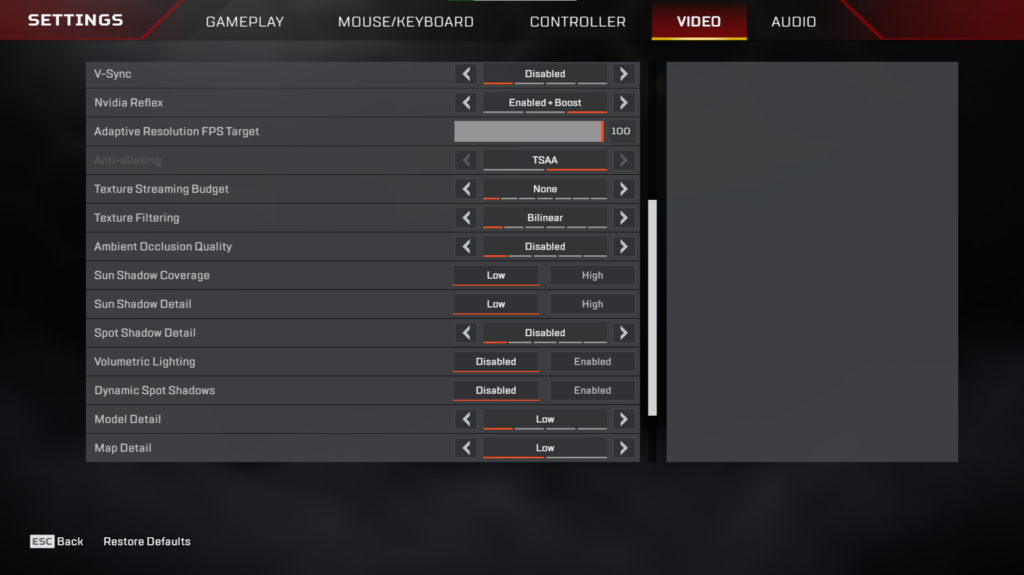
Apex Legends Competitive Settings
Apex Legends is a fast-paced game where stable FPS and visibility are extremely important.
Recommended Settings:
- Adaptive Resolution FPS Target → 90–100
Dynamically lowers resolution to maintain stable FPS during fights. - Spot Shadow Detail → OFF
Provides a noticeable FPS boost and reduces unnecessary visual effects.
Best NVIDIA & AMD Settings for Competitive Gaming
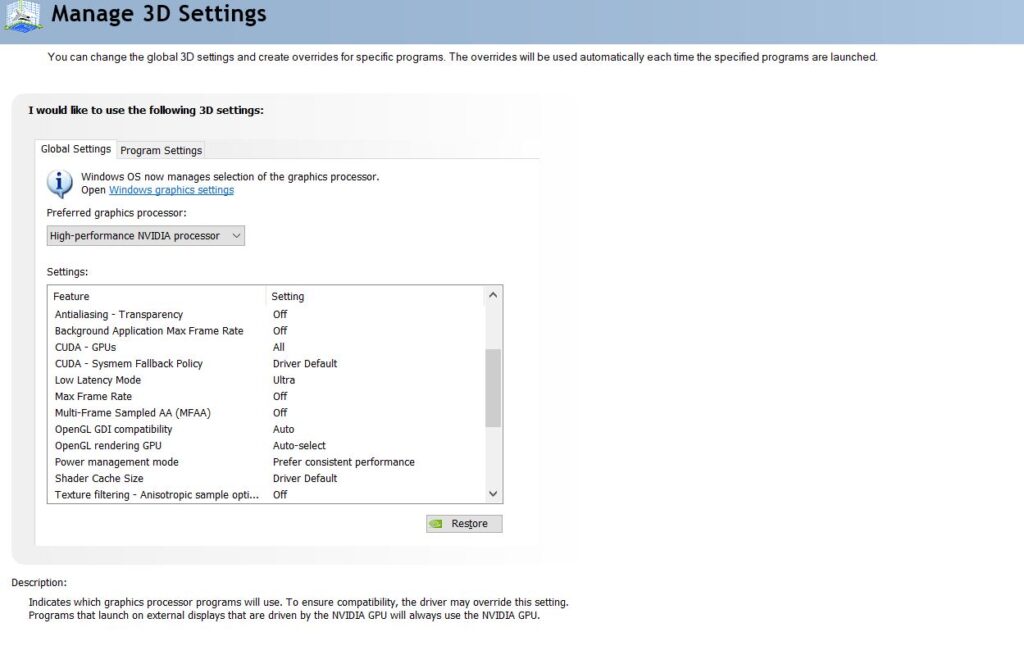
GPU control panel settings can noticeably improve:
- FPS stability
- Input responsiveness
- Overall smoothness during gameplay
Here are some of the best competitive settings for both NVIDIA and AMD users.
NVIDIA Control Panel Settings
If you use an NVIDIA GPU, these settings can help reduce latency and improve performance in competitive FPS games.
Low Latency Mode → Ultra
This reduces the number of queued frames between your CPU and GPU.
Benefits:
- Lower input lag
- Faster responsiveness
- More immediate mouse feel
This is one of the most important settings for competitive gaming.
Power Management Mode → Prefer Maximum Performance
Prevents your GPU from lowering clock speeds during gameplay.
Benefits
- More stable FPS
- Reduced stuttering
- Better consistency during fights
Texture Filtering Quality → High Performance
Prioritizes FPS over visual quality.
Benefits:
- Slight FPS improvement
- Less GPU load
- Better overall responsiveness
AMD Adrenalin Settings
AMD users also have several powerful competitive optimization features.
Radeon Anti-Lag → ON
Reduces system latency and improves responsiveness.
Benefits:
- Faster input response
- Lower perceived delay
- Smoother gameplay feel
Radeon Boost → ON
Dynamically lowers resolution during fast movement to maintain higher FPS.
Benefits:
- Better FPS during intense fights
- Improved responsiveness during movement-heavy gameplay
Common Competitive Gaming Mistakes
Many players accidentally increase input lag or reduce performance because of poor settings choices.
Playing With V-Sync Enabled
V-Sync attempts to synchronize your game’s FPS with your display refresh rate.
While it reduces screen tearing, it also:
- Adds noticeable input lag
- Makes gameplay feel less responsive
Competitive players almost always keep V-Sync OFF.
Leaving NVIDIA Reflex Disabled
Recommended
- NVIDIA Reflex → ON + Boost
NVIDIA Reflex is one of the best modern settings for reducing latency in supported games.
Many players immediately notice:
- Faster responsiveness
- Smoother aiming
- Better overall mouse feel
Ignoring Stretched Resolution
Native resolution like 1920×1080 is perfectly fine, but many competitive players prefer stretched resolutions for extra visibility advantages.
Popular options include:
- 1728×1080
- 1440×1080
Benefits of Stretched Resolution
- Slight FPS increase
- Lower GPU strain
- Enemies appear slightly wider on screen
1728×1080 is one of the best balanced stretched resolutions for competitive gaming.
Conclusion
Competitive gaming is not just about raw skill—it’s also about creating the best environment for your performance.
The right FPS settings can:
- Increase frame rates
- Reduce input lag
- Improve visibility
- Make aiming feel smoother and more consistent
That’s why professional players prioritize:
- Stable FPS
- Lower graphics settings
- Better responsiveness
- Clear visibility during fights
Even players with powerful gaming PCs often use optimized low settings because competitive advantage matters more than visual quality.
The best competitive settings usually focus on:
- Fullscreen mode
- V-Sync OFF
- Lower visual effects
- Higher refresh rates
- NVIDIA Reflex or AMD Anti-Lag enabled
And when combined with the right sensitivity and peripherals, your gameplay can feel significantly more responsive.
If you want to improve your competitive performance further, check out:
- the best sensitivity settings for FPS games
- how to reduce input lag in FPS games
- the best budget gaming mouse for FPS
- the best budget gaming mousepad for FPS
And if you’re planning to upgrade your full setup for smoother gameplay and higher FPS, check out the best gaming setup under $1000.