
Not everyone can afford a high-end gaming laptop in 2026—and that’s completely fine. I’ve personally used a low-end laptop for over 5 years, so I understand the struggle with lag and FPS drops. The good news is that games like Apex Legends are designed to run on a wide range of systems. With the right settings, you can significantly improve your performance and enjoy smooth gameplay—even on a low-end laptop.
Consistency in aim also depends on your mousepad. A good surface can improve tracking—check out the best budget gaming mousepad for FPS.
What Is a Low-End Laptop?
A low-end laptop typically struggles with newer games due to limited hardware. Common specs include:
- GPU: GTX 1650 (4GB), RTX 2050 (4GB), GTX 1050 (2GB)
- RAM: 8GB (upgrade recommended to 16GB)
- CPU: Intel i3 / older i5 / Celeron / Pentium
These systems can still run games—but require optimized settings for the best experience.
Best Settings for Low-End Laptop (Explained)
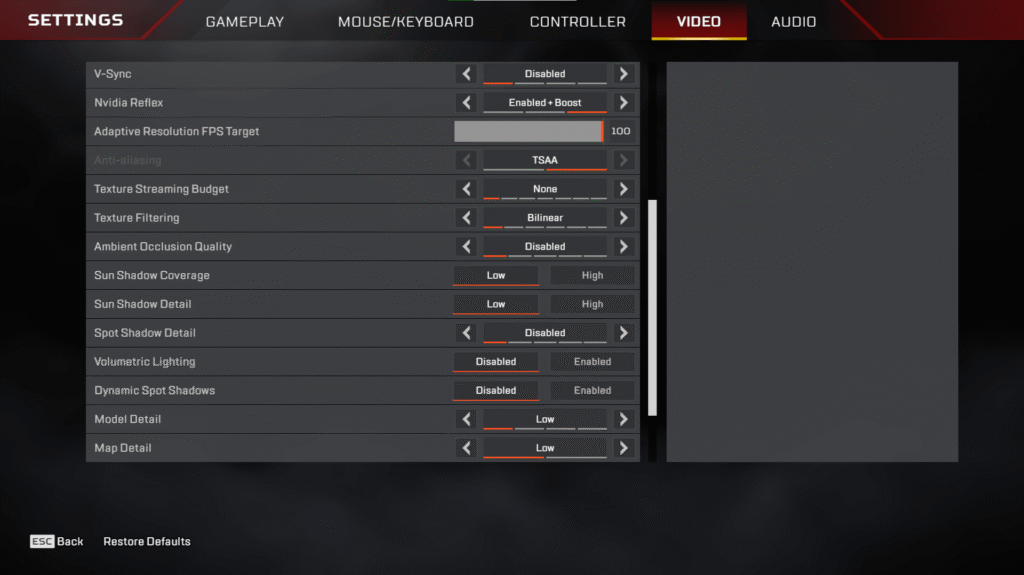
If your laptop falls into this category, don’t worry—you can still get smooth performance. These settings are optimized for higher FPS and better stability.
In-Game Settings (Recommended) Go to:
Settings → Video → Advanced
Core Performance Settings
- V-Sync: Off
- NVIDIA Reflex: Enabled + Boost
- Adaptive Resolution Target: 50
Texture & Clarity
- Texture Streaming Budget: None or 2GB
- Texture Filtering: Bilinear
- Anti-Aliasing: TSAA (locked with ART)
Shadows & Lighting (TURN OFF)
- Ambient Occlusion: Disabled
- Sun Shadow Coverage: Low
- Sun Shadow Detail: Low
- Spot Shadow Detail: Disabled
- Volumetric Lighting: Disabled
- Dynamic Spot Shadows: Disabled
Detail Settings (LOW EVERYTHING)
- Model Detail: Low
- Map Detail: Low
- Effects Detail: Low
- Impact Marks: Disabled
- Ragdolls: Low
Best Settings Summary:
Here’s a quick overview of the most important settings for maximum FPS:
- V-Sync → Off
- NVIDIA Reflex → Enabled + Boost
- Texture Streaming Budget → None / 2GB
- Shadows → Disabled / Low
- Effects Detail → Low
- Model & Map Detail → Low
These settings prioritize performance over visuals for smoother gameplay.
Key Tip
Most of these settings only improve visuals—not gameplay. Lowering them:
- Increases FPS
- Reduces input lag
- Improves consistency in fights
That said, if you want to reduce input lags check out my how to reduce input lags guide.
Best Resolution for Higher FPS.
Most players are used to 1080p (1920×1080), but lowering your resolution can significantly improve FPS—especially on low-end laptops.
If you’re struggling with performance in Apex Legends, switching to a stretched resolution can give you a noticeable boost.
Recommended Resolutions.
- 1728×1080
Slightly lower than native 1080p with a mild stretch.
Good balance between visual clarity and FPS
(Personally recommended) - 1920×1440 (Stretched)
Very stretched resolution used by some competitive players.
Can improve FPS and make enemies appear wider - 1440×1080
A classic stretched resolution still used today.
Offers better performance with decent visibility
Quick Tip
Lower resolution:
- Increases FPS
- Reduces GPU load
- but, slightly reduces image sharpness
If your goal is competitive performance, lower resolution is worth it.
Performance Tips for Better FPS.
Even with the best settings, small system optimizations can make a big difference in performance.
Here are some simple ways to improve FPS in Apex Legends on a low-end laptop:
Close Background Applications
Before launching the game, make sure all unnecessary apps are closed.
This allows your:
- CPU
- GPU
- RAM
to fully focus on running the game smoothly.
Improve Cooling.
Overheating is one of the biggest causes of FPS drops on laptops.
To reduce heat:
- Use a cooling pad
- Clean dust from your fans regularly
- Replace thermal paste every 6–12 months
Better cooling = more stable performance
Audio awareness is another key factor in Apex Legends. Using a good headset helps you hear footsteps clearly—here are the best budget gaming headsets for FPS.
Optimize NVIDIA Control Panel.
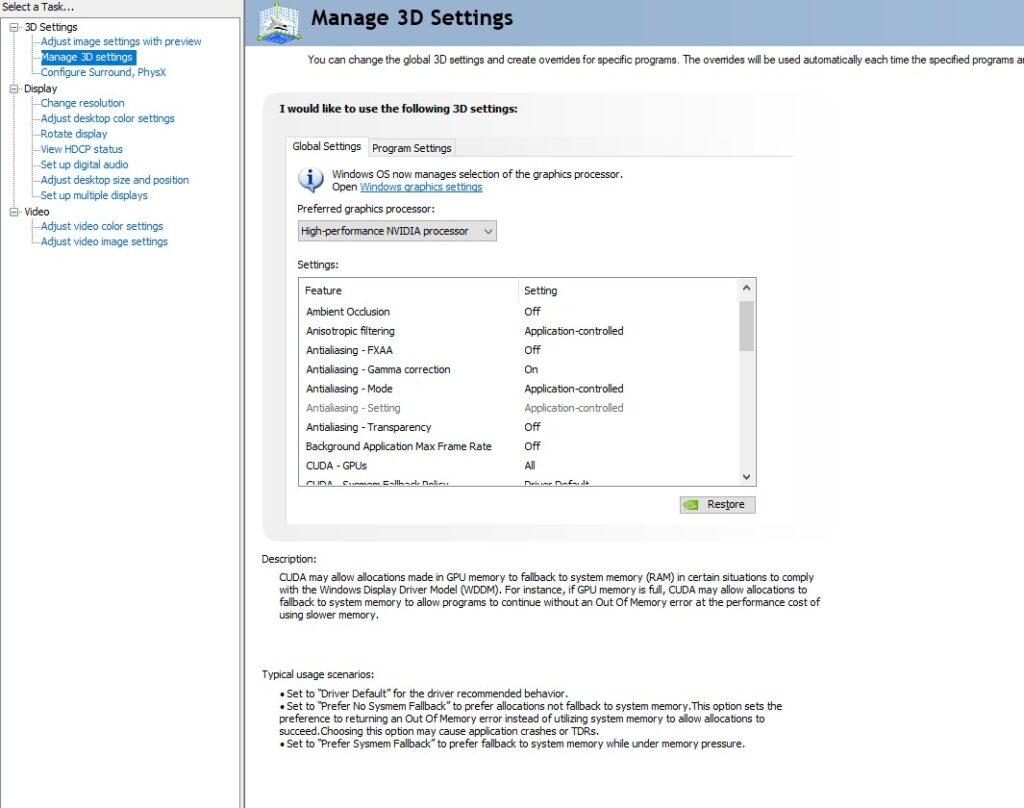
If your laptop has an NVIDIA GPU, you can boost performance through the control panel.
Key settings:
- Power Management → Prefer Maximum Performance
- Low Latency Mode → Ultra
- Texture Filtering → High Performance
These settings help reduce input lag and improve FPS consistency
Extra System Optimization Tips
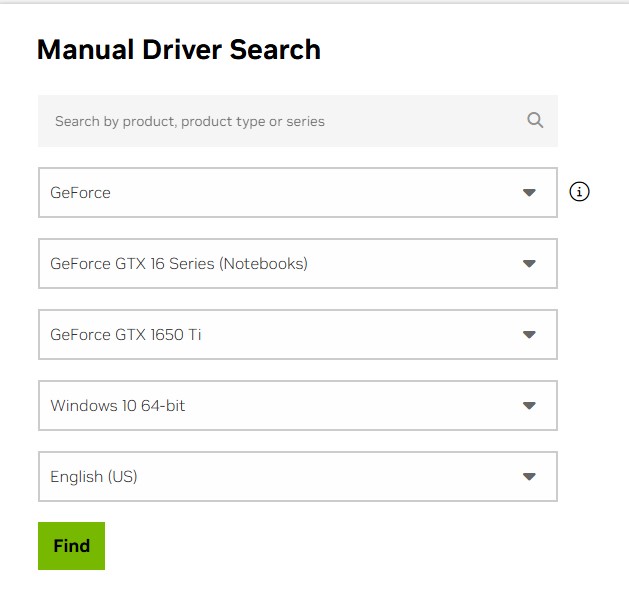
To get the best performance, don’t rely only on in-game settings.
Enable Windows Game Mode
Game Mode helps prioritize system resources for gaming.
Update Your Graphics Drivers
Keeping your GPU drivers updated ensures better optimization and performance.
Set Power Plan to High Performance
Go to Power Options and select High Performance to allow your system to run at full power.
Use an SSD
Running your game on an SSD improves loading times and reduces stuttering.
Final Tip
Performance isn’t just about in-game settings—
your system setup matters just as much.
Expected FPS on a Low-End Laptop.
Let’s be realistic—your FPS will depend on your laptop’s specs and how well you optimize your settings.
With the right tweaks, most low-end systems can achieve smooth and playable performance in Apex Legends.
Real Example (My Setup)
I personally used a:
- Lenovo Legion 5
- GTX 1650 Ti
- Ryzen 5 4600H
- 16GB DDR4 RAM
With optimized settings, I was averaging:
95–120 FPS
And honestly, that felt very smooth and consistent for competitive play.
What You Should Expect
Depending on your setup:
- Lower-end (8GB RAM / older CPU):
60–90 FPS - Optimized low-end (16GB RAM + tweaks):
90–120 FPS
Key Takeaway
You don’t need a high-end gaming PC to enjoy smooth gameplay.
With the right settings and optimizations, even a low-end laptop can deliver a great experience.
Common Mistakes to Avoid
Even with the right settings, some common mistakes can still reduce your FPS and cause lag in Apex Legends.
Using High Texture Settings on Low VRAM.
If your GPU has 4GB VRAM or less, setting Texture Streaming Budget too high can cause stuttering and unstable FPS.
Stick to None or 2GB for better consistency.
Leaving V-Sync Enabled
V-Sync may reduce screen tearing, but it also introduces input lag and can limit your FPS.
Always keep V-Sync OFF for competitive gameplay.
Playing with 8GB RAM Only
Modern games run much better with 16GB RAM.
If possible, upgrade to 16GB RAM for smoother performance and better multitasking.
Ignoring Cooling
Overheating leads to thermal throttling, which reduces FPS. Keep your laptop cool for stable performance.
Want Even More FPS?
If you want to push your performance even further, check out my full guide on how to increase FPS on Apex Legends.
This guide covers advanced tweaks, NVIDIA settings, and system optimization for even better performance.
Conclusion
Don’t let having a low-end laptop stop you from enjoying Apex Legends.
With the right settings, optimized resolution, and a few performance tweaks, you can achieve smooth and consistent FPS even on budget hardware.
The key is to focus on performance over visuals and make small adjustments that improve stability during gameplay.
If you want even better results, make sure to check out my full FPS optimization guide for more advanced tweaks.
Smooth gameplay isn’t about expensive hardware—it’s about smart optimization.
If you want to upgrade everything at once, here’s a complete guide to the best gaming setup under $1000.