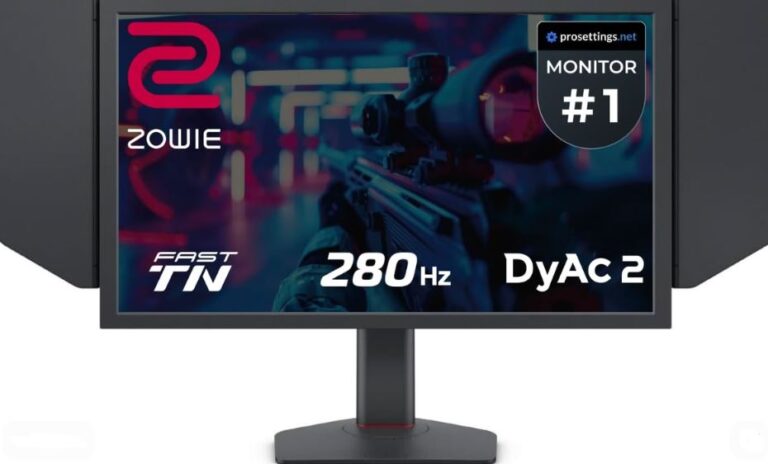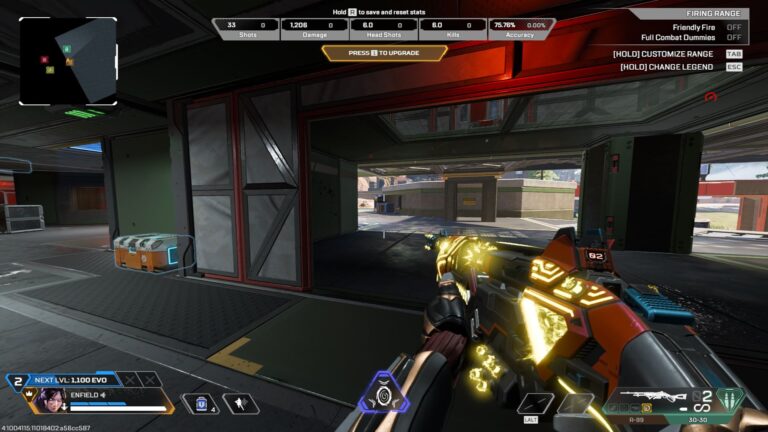

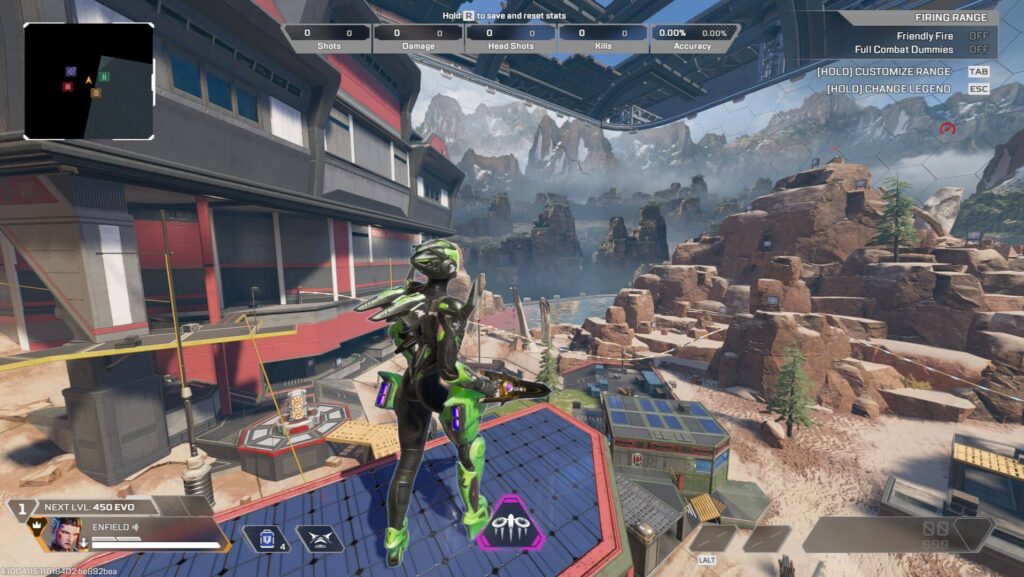
our monitor is one of the most important parts of your gaming setup because it directly affects what you see and how responsive your gameplay feels.
A good monitor with the right settings can:
- Improve visibility
- Reduce input lag
- Make gameplay feel smoother
- Help you react faster during fights
Many players focus only on FPS and graphics settings, but monitor settings also play a huge role in competitive gaming performance. Some monitor settings are mainly for visual quality, while others can genuinely improve:
- Aim consistency
- Enemy visibility
- Motion clarity
- Overall responsiveness
That’s why professional FPS players carefully optimize their monitor settings instead of simply using the default presets. In this guide, we’ll go through the best monitor settings for FPS games, focusing mainly on competitive shooters like Apex Legends, Valorant, and Counter-Strike 2. We’ll also briefly touch on settings that can improve visual quality in RPG and story-based games.
Refresh Rate Explained
Refresh rate determines how many times your monitor updates the image on screen every second.
It is measured in:
Hertz (Hz)
The higher the refresh rate, the smoother and more responsive gameplay feels.
Common Monitor Refresh Rates.
Popular refresh rates include:
- 60Hz
- 75Hz
- 120Hz
- 144Hz
- 165Hz
- 180Hz
- 240Hz
For example:
- A 60Hz monitor refreshes the image 60 times per second
- A 240Hz monitor refreshes the image 240 times per second
This creates much smoother motion and clearer tracking during fast gameplay.
Why Refresh Rate Matters in FPS Games.
Higher refresh rates provide:
- Smoother gameplay
- Better motion clarity
- Faster visual updates
- Lower perceived input lag
This is especially important in competitive FPS games like:
- Apex Legends
- Valorant
- Counter-Strike 2
Competitive players often prefer:
- 144Hz
- 165Hz
- 240Hz
because fast movement appears much clearer compared to 60Hz displays.
Refresh Rate vs FPS
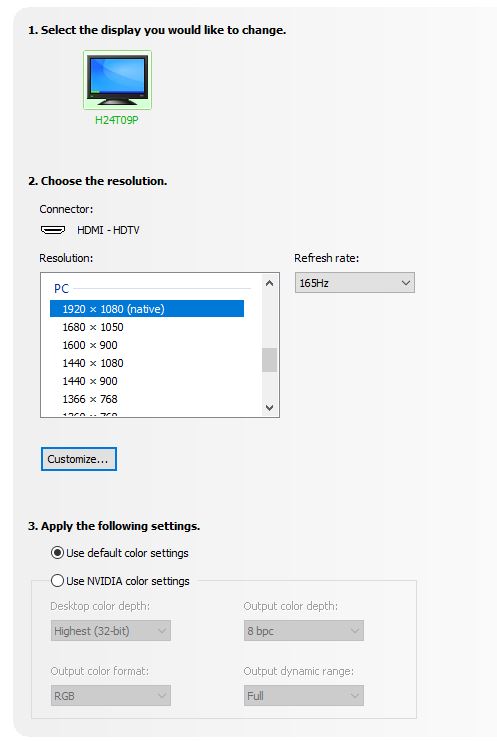
A monitor’s refresh rate determines the maximum number of frames you can visually see.
Example:
- A 60Hz monitor can only display up to 60 FPS visually
- A 144Hz monitor can display up to 144 FPS visually
However, your actual FPS is still determined by your hardware, especially:
- GPU (graphics card)
- CPU performance
Buying a 240Hz monitor does NOT automatically guarantee 240 FPS. Your PC must also be powerful enough to produce those frame rates.
Recommended Refresh Rates
Budget Competitive Gaming
- 120Hz / 144Hz
Great balance between performance and affordability.
Serious Competitive Gaming
- 165Hz / 240Hz
Provides smoother motion and lower perceived latency.
Final Recommendation
When buying a gaming monitor, prioritize: the highest refresh rate possible within your budget. For competitive gaming, upgrading from:
- 60Hz → 144Hz
is one of the biggest gameplay improvements you can experience.
Best Resolution & Aspect Ratios for FPS Games
Resolution and aspect ratio both affect:
- Visual clarity
- FPS performance
- Enemy visibility
- Overall competitive experience
Choosing the right combination can improve both performance and aiming comfort.
Best Monitor Resolutions
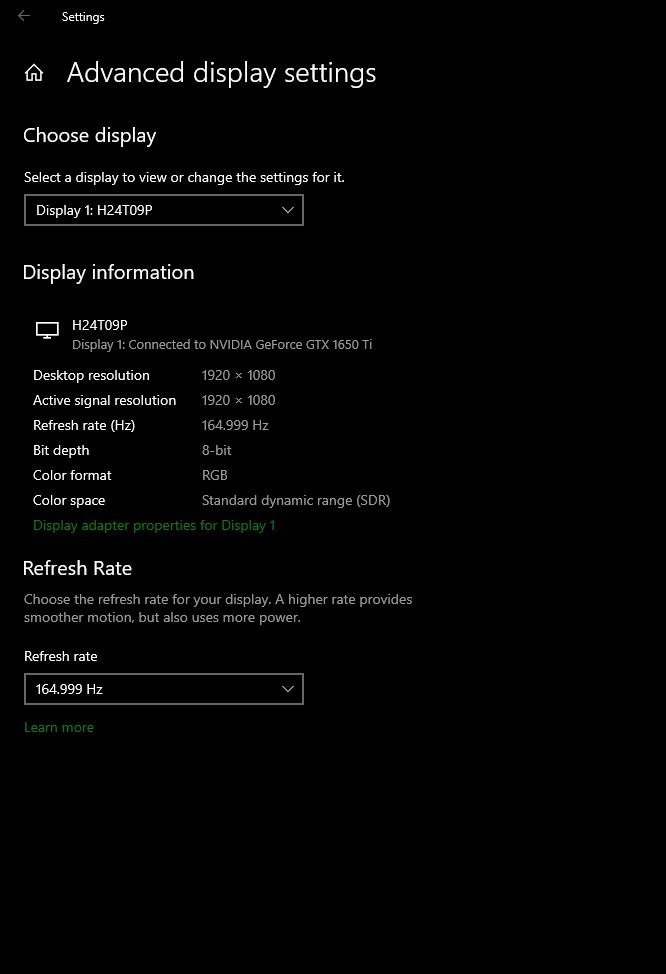
Modern gaming monitors mainly use three common resolutions:
- 1080p (1920×1080)
- 1440p (2560×1440)
- 4K (3840×2160)
Each resolution has its own advantages depending on your setup and playstyle.
1080p (1920×1080)
1080p remains one of the most popular resolutions for competitive gaming.
Why It’s Popular
- Easier to run at high FPS
- Lower GPU usage
- Budget-friendly monitors
- Common among professional FPS players
1080p is usually paired with:
24-inch monitors
which many players consider the ideal competitive monitor size because enemies remain easy to track without excessive screen movement.
1440p (2560×1440)
1440p is often considered the balance between:
- Visual quality
- Competitive performance
Advantages
- Sharper image quality
- Better detail clarity
- Still capable of high FPS on strong hardware
1440p monitors are commonly:
27 inches
and are becoming increasingly popular among competitive gamers with mid-to-high-end PCs.
4K (3840×2160)
4K focuses more on visual quality than competitive advantage.
Advantages
- Extremely sharp image quality
- Beautiful visuals for RPG and story games
Downsides
- Very demanding on GPUs
- Lower FPS in competitive games
- Requires powerful hardware
4K gaming is usually best suited for:
- High-end gaming PCs
- Story-driven games
- Visual-focused experiences
Aspect Ratios Explained
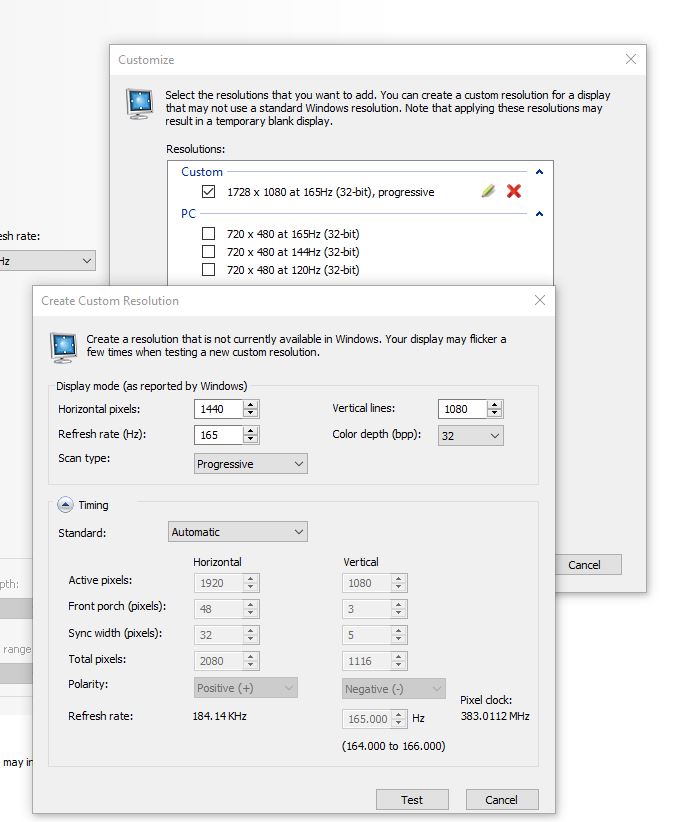
Aspect ratio determines the width-to-height proportion of your display.
Most standard resolutions use:
16:9 aspect ratio
including:
- 1080p
- 1440p
- 4K
Stretched Aspect Ratios
Some competitive players use stretched resolutions because enemies appear wider on screen.
Popular stretched resolutions include:
- 1728×1080 → 16:10
- 1440×1080 → 4:3 stretched
Why Players Use Stretched Resolution
Stretched resolutions can:
- Make enemies appear larger
- Improve target visibility
- Slightly increase FPS
This is especially common in games like:
- Counter-Strike 2
- Valorant
Recommended Competitive Setup
For most FPS players:
Best Overall Competitive Resolution
- 1920×1080
- 1728×1080 stretched
These provide:
- Strong FPS performance
- Good clarity
- Excellent competitive visibility
Best Monitor Settings for Competitive Gaming
Proper monitor settings can improve:
- Enemy visibility
- Motion clarity
- Overall comfort during long gaming sessions
These settings may seem small, but together they can noticeably improve your competitive gaming experience.
Brightness
Monitor brightness is measured in:
Nits
Higher nits generally mean a brighter display.
For gaming monitors:
Recommended Brightness
- 300–400 nits
This provides good visibility without making the screen excessively bright.
Brighter Is Not Always Better
Many players assume maximum brightness is ideal, but overly bright monitors can:
- Cause eye strain
- Reduce comfort during long sessions
- Feel harsh in dark rooms
It’s also important to consider how low the monitor’s minimum brightness can go, especially if you play in darker environments. Watching monitor reviews before buying is highly recommended.
Contrast
Contrast affects the difference between:
- Bright areas
- Dark areas
Higher contrast can help enemies stand out more clearly in darker environments.
Competitive Recommendation
- Slightly increase contrast for FPS games
This can improve visibility in:
- Dark corners
- Shadow-heavy maps
For Visual Story Games
If you mainly play visually beautiful games like:
- Red Dead Redemption 2
- Crimson Desert
Keeping contrast closer to default values (around 50) often provides a more natural image.
Sharpness
Sharpness controls how defined edges and objects appear on screen. Increasing sharpness slightly can:
- Make enemies easier to see
- Improve object clarity
- Help visual definition in competitive games
Recommended
- Slightly above default
- Avoid extreme sharpness to prevent image distortion
Overdrive
Overdrive is a feature found on many gaming monitors that helps reduce:
Ghosting
Ghosting appears as:
- Blur trails
- Shadows behind moving objects
This becomes very noticeable in fast-paced games like:
- Apex Legends
- Call of Duty: Warzone
Recommended Overdrive Setting
- Medium or Fast
Too much overdrive can introduce:
- Inverse ghosting
- Overshoot artifacts
So avoid using the maximum setting unless it performs well on your monitor.
Response Time
Response time measures how quickly monitor pixels change between colors. It is usually measured in:
Milliseconds (ms)
Lower response times reduce:
- Motion blur
- Ghosting
- Smearing during movement
Marketing Can Be Misleading
Many monitor brands advertise:
- “0.5ms”
- “1ms response time”
However, these numbers are often based only on:
Gray-to-Gray (GtG) transitions
Other color transitions may actually perform slower in real-world gaming. That’s why researching detailed monitor reviews is important before buying.
Competitive Gaming Recommendation
For FPS gaming, look for monitors with:
- Fast real-world response times
- Minimal ghosting
- Stable overdrive performance
- High refresh rates
These factors matter more than flashy marketing numbers.
Best Monitor Panel Types for FPS Gaming
The panel type of your monitor affects:
- Response time
- Motion clarity
- Color quality
- Viewing angles
- Overall gaming experience
Different panel types are designed for different priorities, so choosing the right one depends on whether you value:
- Competitive performance
or - Visual quality.
TN Panels
TN (Twisted Nematic) panels are known for:
- Extremely fast response times
- Very low input lag
- High refresh rate performance
Advantages
- Fastest response times
- Excellent for competitive FPS gaming
- Usually cheaper than other panel types
This makes TN panels great for:
- Fast-paced shooters
- Esports gaming
- Competitive players focused purely on performance
Downsides
- Poor viewing angles
- Weaker color quality
- Washed-out visuals from side angles
TN monitors look best only when viewed directly from the front. If your main focus is competitive FPS performance over visuals, TN panels are still a strong option.
IPS Panels
IPS (In-Plane Switching) panels are considered the best balance between:
- Performance
- Visual quality
This is currently the most popular monitor panel type on the market.
Advantages
- Good response times
- Excellent color quality
- Better viewing angles
- Strong overall gaming experience
IPS monitors work well for:
- Competitive FPS games
- RPG/story games
- General everyday use
IPS Pricing
There are:
- Budget IPS monitors
- Premium IPS monitors
The main differences usually involve:
- Response time quality
- Motion handling
- Ghosting performance
- Color accuracy
Some budget IPS monitors still offer excellent gaming performance.
VA Panels
VA (Vertical Alignment) panels focus more on:
- Deep contrast
- Rich visuals
- Strong black levels
They are commonly found in:
- Curved gaming monitors
Advantages
- Beautiful visuals
- Excellent contrast
- Strong immersion for story games
Downsides
- Slower response times
- More ghosting in fast movement
- Less ideal for fast-paced competitive gaming
VA panels are usually not recommended for serious FPS players because ghosting can become noticeable during quick movements.
OLED Panels
OLED monitors provide:
- Premium visuals
- Exceptional response times
- Incredible motion clarity
They are considered the highest-end gaming displays currently available.
Advantages
- Near-instant response times
- Amazing contrast and colors
- Minimal ghosting
- Excellent motion clarity
OLED monitors deliver both:
- Elite competitive performance
AND - Premium visual quality
Downsides
- Very expensive
- Risk of burn-in over long-term static usage
Best Panel Type Recommendations
Best for Competitive FPS
- TN
- Fast IPS
Best Overall Balance
- IPS
Best Visual Experience
- OLED
Least Recommended for Competitive FPS
- VA
Common Monitor Mistakes FPS Players Make
Many gamers spend money on powerful PCs but overlook their monitor settings and display quality. Here are some of the most common mistakes players make when choosing or configuring a gaming monitor.
Playing on 60Hz for Competitive FPS Games
A 60Hz monitor is still usable, but for competitive gaming it can feel much less responsive compared to higher refresh rate monitors. Higher refresh rates provide:
- Smoother gameplay
- Better tracking
- Lower perceived input lag
Upgrading from 60Hz to 144Hz is one of the biggest improvements competitive gamers can experience.
Prioritizing Resolution Over Refresh Rate
Many beginners focus only on:
- 1440p
- 4K visuals
while ignoring refresh rate.
For competitive FPS gaming: Refresh rate matters more than ultra-high resolution. A 1080p 144Hz monitor will usually feel much smoother and more responsive than a 4K 60Hz display.
Using Maximum Brightness All the Time
Overly bright monitors can:
- Cause eye strain
- Reduce comfort during long sessions
- Make dark rooms uncomfortable
Proper brightness balancing is important for both comfort and visibility.
Using Slow VA Panels for Competitive Gaming
VA panels look beautiful, but many cheaper VA monitors suffer from:
- Ghosting
- Smearing
- Slow motion performance
This can negatively affect fast-paced games like:
- Apex Legends
- Call of Duty: Warzone
Ignoring Real Response Time Reviews
Many monitors advertise:
- “1ms”
- “0.5ms”
…but real-world performance may be very different. Always watch or read detailed monitor reviews before buying. Marketing numbers alone can be misleading.
Best Monitor Recommendations for FPS Gaming
Here are some excellent monitor types and categories for competitive gaming depending on your budget and needs.
Best Budget Competitive Monitor
24-inch 1080p 144Hz IPS Monitor
This is one of the best starting points for competitive gaming because it offers:
- High refresh rate
- Good visuals
- Fast response times
- Affordable pricing
Perfect for:
- Budget gaming setups
- FPS beginners
- Competitive gaming on a budget
Best Mid-Range Competitive Monitor
27-inch 1440p 165Hz IPS Monitor
This provides:
- Sharper visuals
- Smooth gameplay
- Better image quality
- Strong competitive performance
Excellent balance between:
- visuals,
- FPS,
- and responsiveness.
Best Premium Competitive Monitor
OLED 240Hz Gaming Monitor
OLED monitors deliver:
- Incredible motion clarity
- Near-instant response times
- Premium visuals
- Elite competitive performance
These are currently some of the best gaming monitors available for both:
- competitive FPS gaming
- and immersive story games.
Conclusion
Your monitor settings can have a huge impact on how competitive games feel.
The right settings can:
- Improve visibility
- Reduce ghosting
- Lower perceived input lag
- Make gameplay smoother and more responsive
That’s why professional players focus heavily on:
- refresh rates,
- response times,
- panel types,
- and visibility settings.
For competitive FPS gaming, the best balance usually comes from:
- High refresh rates
- Low response times
- Proper brightness and contrast settings
- Optimized display settings
And while visual quality is important, responsiveness and clarity often matter more in competitive games.
If you want to improve your setup further, check out:
- the best FPS settings for competitive gaming
- how to reduce input lag in FPS games
- the best sensitivity settings for FPS games
- the best gaming setup under $1000
And if you’re planning to build a smoother competitive gaming setup, choosing the right monitor alongside the right mouse, keyboard, and gaming laptop can make a massive difference in overall performance.