
Gaming in 2026 is more popular than ever—but not everyone can afford a $2,000–$5,000 setup like top streamers or professional esports players. Even $2000 to $5000 is an overkill, but there’s good news.
The good news? You don’t need that kind of budget to enjoy competitive games.
While demanding titles like Call of Duty or Battlefield require high-end hardware for ultra settings, e-sports games such as Apex Legends, Valorant, and Counter-Strike 2 are much more optimized and can run surprisingly well on budget gaming laptops. But if you are still struggling with performance, check out this guide on how to increase FPS in Apex legends.
That said, it’s important to set realistic expectations. A gaming laptop under $800 won’t deliver ultra settings at 1080p in most cases. However, with the right setup and optimized settings, you can still achieve smooth performance—often between 100–144 FPS in competitive titles. But if you want an in-depth guide on how to increase FPS check out, how to increase FPS on Apex Legends.
And if you connect your laptop to an external monitor, games like CS2 can push even higher frame rates, giving you a much better competitive experience without breaking the bank. Funny enough I myself have a Lenovo Legion 5 laptop that I bought 5yrs ago which I used to write this article and also play Apex Legends on so believe me when I tell you the lowest GPU suggestion in the next section is enough for the game.
Affiliate Disclosure
Some of the links in this article are affiliate links, which means I may earn a small commission if you purchase a product through one of these links, at no additional cost to you. This helps support me and allows me to continue creating gaming guides and hardware recommendations for you.
Minimum Specs You Need for a Budget Gaming Laptop
When shopping for a gaming laptop under $800, you should expect mid-range specifications that are capable of handling e-sports titles smoothly. And it’s safe to say, most e-sports titles are very much optimized for low end systems.
Graphics Card (GPU)
The GPU is the most important component for gaming performance. In this budget range, you should look for:
- NVIDIA GTX 1650 / GTX 1650 Ti
- NVIDIA GTX 1660 Ti
- NVIDIA RTX 2060 (Mobile)
- NVIDIA RTX 3050 / RTX 3050 Ti
From personal experience, I’ve used a GTX 1650 Ti to play Apex Legends at decent frame rates. Even though it only has 4GB of VRAM, it can still deliver smooth gameplay on optimized settings.
Important: Unlike desktops, laptop GPUs cannot be upgraded. So it’s always better to choose the best GPU you can afford.
RAM (Memory)
For modern gaming, 16GB of DDR4 RAM is highly recommended.
While 8GB may run some games, you may struggle with newer titles or multitasking. If you plan to play multiple games or keep apps running in the background, 16GB gives you a much smoother experience.
Storage (SSD vs HDD)
Storage speed affects loading times and overall performance.
Minimum: 512GB SSD
Optional: Additional HDD for storage
Always install and play your games on an SSD. HDDs are significantly slower and can cause longer load times and stuttering in some cases. So if you find some laptops with SSD’s and HDD’s always prefer to download movies and game installation packages on the HDD and play the main games on the SDD’s. Thank me later.
Processor (CPU)
For a balanced gaming experience, aim for:
AMD Ryzen 5 (4000 series or newer)
Intel Core i5 (10th–12th Gen)
Okay so you will mostly find the lower priced gaming laptops with AMD CPU’s. This is because AMD is generally more cheaper and provides exceptional gaming performance. I’m not saying this because I personally own a potato AMD CPU in my Lenovo laptop but, AMD rules when it comes to price to performance. AMD wins. In your face Intel.
These processors provide enough power to handle esports games and general multitasking without bottlenecks.
Best Cheap Gaming Laptops Under $800.
You can find most of these laptops on Amazon or similar stores. One thing I noticed while researching is that many budget gaming laptops come with only 8GB RAM. And as the years go by the more the extreme budget laptop reduce in price.
For the best experience, I strongly recommend upgrading to 16GB RAM, especially for multitasking and newer games.
Acer Nitro 5 (Best Overall Performance)
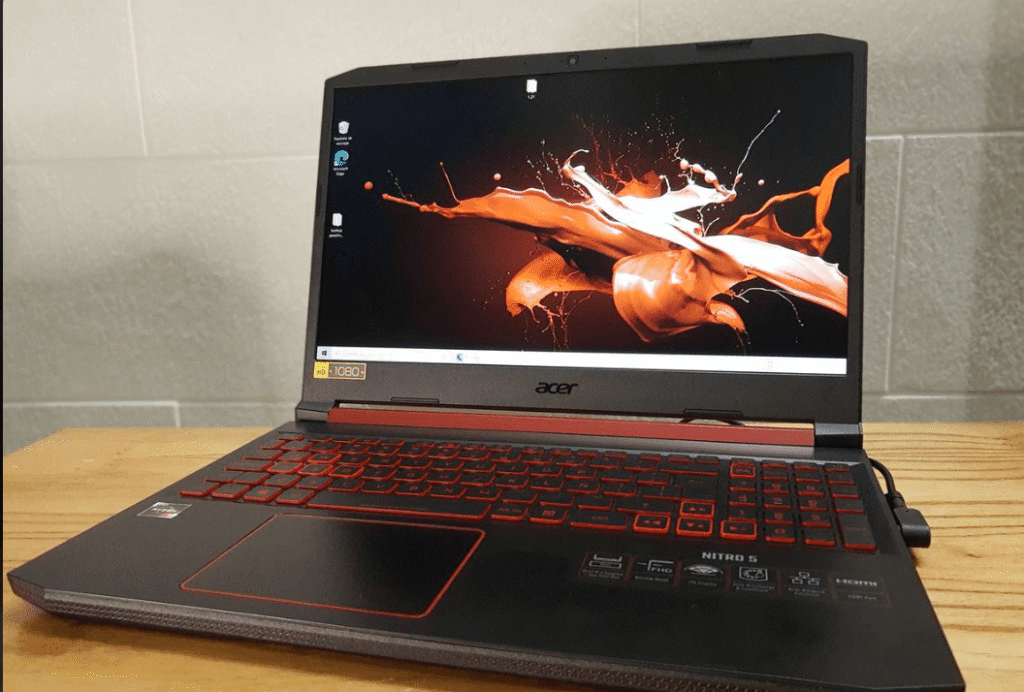
The Acer Nitro 5 (around $749) features an Intel Core i5-13420H processor, NVIDIA RTX 4050 GPU, 15.6” FHD 165Hz display, 8GB DDR5 RAM (upgradeable), and a 512GB Gen4 SSD. If you find one featuring an RTX 4050 GPU, snatch it ASAP. Don’t worry I will be in the look out for one for you.
This is easily the best-performing laptop in this price range, capable of running Apex Legends at 1080p high settings with around 120–200+ FPS.
Pros:
- RTX 4050 = strongest GPU here (smooth high/ultra 1080p gaming)
- Supports DLSS + Frame Generation (huge FPS boost)
- 165Hz display is excellent for competitive gaming
- Newer 13th Gen CPU (good long-term performance)
Best overall future-proof option
Cons:
- 8GB RAM is a bottleneck (upgrade needed)
- Can run hot under heavy load (common issue)
- Basic plastic build quality
- Weak battery life
HP Victus (Best Budget Value)
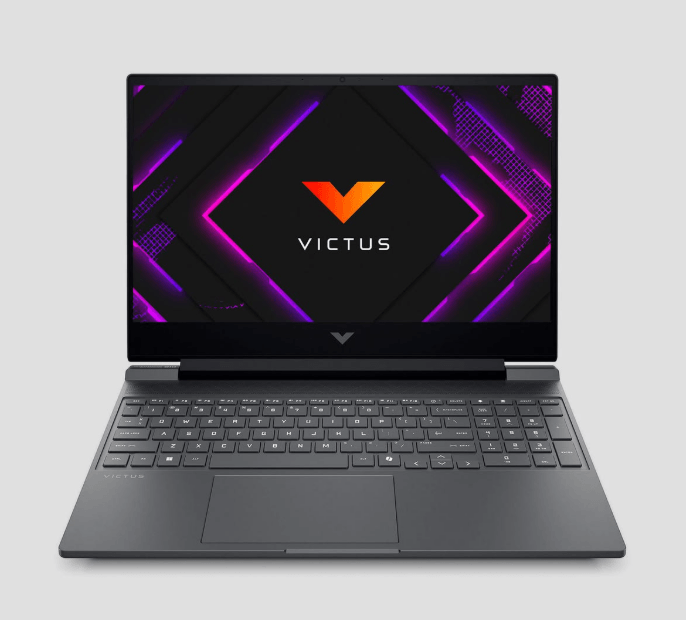
The HP Victus comes with an Intel i5-13420H, RTX 3050, 8GB RAM, and 512GB SSD. It delivers solid performance in esports titles like Apex Legends at 100–160 FPS on medium to high settings.
Pros:
- Great price-to-performance ratio
- Smooth 1080p gaming on medium/high settings
- Same modern CPU as Nitro 5
- Clean, minimal design
Cons:
- RTX 3050 is noticeably weaker than RTX 4050
- 8GB RAM limitation
- Average display quality
- Cooling is decent but not exceptional
ASUS TUF Gaming F15 (Durability Focus)
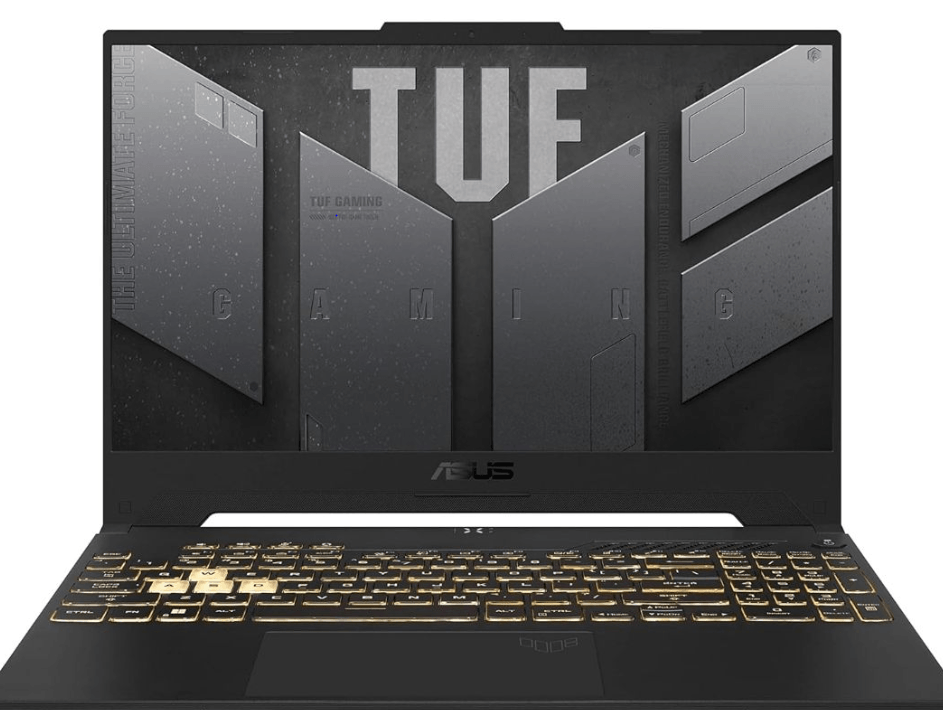
The ASUS TUF F15 features a 144Hz FHD display, Intel i5-11400H, RTX 2050, 512GB SSD, and 8GB RAM.
It can run Apex Legends at 90–140 FPS on medium to high settings.
Pros:
- Better build quality (TUF series is known for durability)
- Supports DLSS (RTX GPU)
- Good for esports and light AAA gaming
Cons:
- RTX 2050 offers only a small improvement over older GPUs
- Older 11th Gen CPU
- Not ideal for newer AAA games
- 8GB RAM limitation
Slightly overpriced for the performance
Lenovo Legion 5 (Best Build Quality – Older Option)
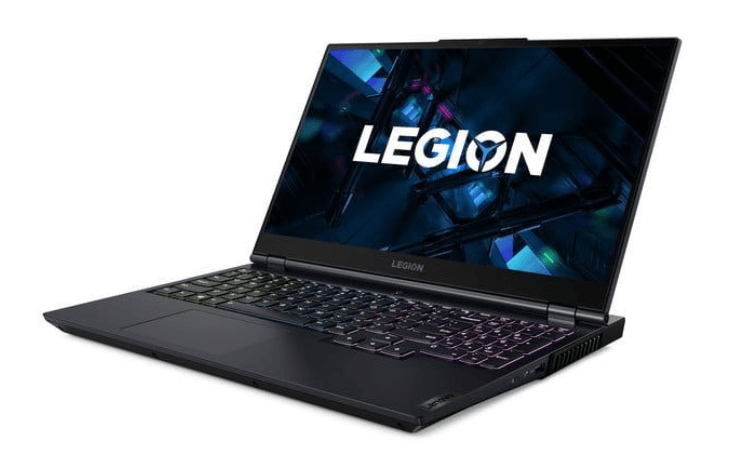
The Lenovo Legion 5 (~$629) includes a Ryzen 5 4600H, GTX 1650 Ti, 256GB SSD + 1TB HDD.
From personal experience, this laptop can run Apex Legends at 70–120 FPS on medium to high settings, especially with optimized settings. Would have never written this article without featuring this laptop. I have used this laptop for 5yrs and it still looks fresh. But it’s an old laptop 5yrs ago it was $1000 now the price is constantly dropping to -$500. It will forever hold a place in my heart.
Pros:
- Excellent build quality (premium feel)
- Strong cooling system (better than most budget laptops)
- Reliable keyboard and durability
- Still good for esports and older games
Cons:
- GTX 1650 Ti is outdated in 2026
- No DLSS or ray tracing support
- Struggles with modern AAA games
- Older CPU
- Least future-proof option
Performance In Esport Games.
Esports titles like Apex Legends, Valorant and CS2 are not that demanding to run thus, here are some FPS you will get from using these gaming laptops. From the best being Acer Nitro 5 to Lenovo Legion 5
| ACER Nitro 5 (RTX 4050- Best Performance) | ||||
| Game | Low Settings | Medium Settings | High Settings | Note/ Tips |
| Apex Legends | 140–200+ FPS | 110–160 FPS | 85–130 FPS | Extremely smooth. Excellent for competitive play with stable performance even during fights. |
| Valorant | 350–500+ FPS | 280–400 FPS | 250–350+ FPS | Outstanding performance. Easily exceeds 165Hz refresh rate. |
| Counter-Strike 2 (CS2) | 180–280+ FPS | 140–220 FPS | 110–180 FPS | Strong performance. Use low settings + stretched res (1280×960) for max FPS. |
| PUBG | 110–160+ FPS | 85–130 FPS | 65–110 FPS | Smooth gameplay. Medium settings recommended for consistency in late-game fights. |
| HP Victus (RTX 3050 – Best Value) | ||||
| Game | Low Settings | Medium Settings | High Settings | Note/ Tips |
| Apex Legends | 120–180+ FPS | 90–140 FPS | 70–110 FPS | Smooth on Low/Medium. Slight drops in intense fights. |
| Valorant | 300–400+ FPS | 250–350 FPS | 220–300+ FPS | Excellent for competitive play. Easily maintains 144+ FPS. |
| Counter-Strike 2 (CS2) | 160–250+ FPS | 130–200 FPS | 100–160 FPS | Strong performance. 16GB RAM improves stability significantly. |
| PUBG | 90–140 FPS | 70–110 FPS | 55–90 FPS | Medium settings offer the best balance of performance and visuals. |
| ASUS TUF F15 (RTX 2050 – Balanced Option) | ||||
| Game | Low Settings | Medium Settings | High Settings | Note/ Tips |
| Apex Legends | 100–140+ FPS | 80–110 FPS | 65–95 FPS | Very playable. Some drops during intense moments. |
| Valorant | 250–350+ FPS | 200–280 FPS | 180–240+ FPS | Smooth and reliable. Great for competitive gaming. |
| Counter-Strike 2 | 140–220+ FPS | 110–170 FPS | 90–140 FPS | Use low settings + stretched resolution for best performance. |
| PUBG | 80–120 FPS | 65–100 FPS | 50–80 FPS | Medium/low settings recommended for smoother gameplay. |
| Lenovo Legion 5 (GTX 1650 Ti – Entry Level Option) | ||||
| Game | Low Settings | Medium Settings | High Settings | Note/ Tips |
| Apex Legends | 90–130+ FPS | 70–100 FPS | 55–80 FPS | Playable. Lower settings recommended for consistency. |
| Valorant | 200–300+ FPS | 160–220 FPS | 140–190 FPS | Excellent performance. Easily hits 144+ FPS. |
| Counter-Strike 2 | 120–200+ FPS | 100–160 FPS | 80–130 FPS | Good on low settings. Some dips possible in heavy scenarios. |
| PUBG | 70–110 FPS | 55–85 FPS | 45–70 FPS (Ultra ~40–60) | Playable, but struggles in demanding situations. |
HOW TO BOOST YOUR FPS ON BUDGET LAPTOPS.
FPS (Frames Per Second) measures how many frames your system can render every second. In competitive games, higher FPS means smoother gameplay and faster response time—which can give you a real advantage.
If you’ve already chosen your laptop, here are some proven ways to increase and stabilize FPS in games like Apex Legends and other esports titles.
And for competitive gameplay, using the right settings is just as important, here are the best Apex Legends settings for low-end laptops.
Optimize Your In-Game Settings
The easiest and most effective way to boost FPS is by lowering your graphics settings.
Here’s what you should do:
- Turn V-Sync OFF
- Disable or lower Anti-Aliasing
- Set Texture Streaming Budget to 2GB or lower (controls VRAM usage)
- Set most other settings to Low or Disabled
Many professional players use low settings for maximum performance. For example, Faide and Imperial Hal prioritize performance over visuals to maintain high FPS and smooth gameplay.
Lower settings = higher FPS + more consistent performance during fights.
Use NVIDIA Control Panel Settings
Your laptop may have both integrated graphics and a dedicated NVIDIA GPU. You want to make sure your games use the powerful GPU.
Go to:
NVIDIA Control Panel → Manage 3D Settings
Set:
- Preferred Graphics Processor → High-performance NVIDIA processor
- Power Management Mode → Prefer Maximum Performance
- Texture Filtering Quality → High Performance
- Low Latency Mode → Ultra
If this is not set correctly, your system might use integrated graphics, which can cause very low FPS (even below 30 FPS).
Improve Cooling and System Performance
Heat is one of the biggest enemies of performance. When your laptop overheats, it reduces performance (thermal throttling),
Here’s how to manage it:
- Clean dust from your fans regularly
- Replace thermal paste every 6–12 months (advanced users)
- Close unnecessary background/startup apps
- Use a cooling pad or laptop stand with fans
- Play in a well-ventilated area
Better cooling = more stable FPS and fewer drops during gameplay.
Final Verdict
At first glance, you might expect gaming laptops under $800 to deliver poor performance. However, as you’ve seen throughout this guide, that’s no longer the case.With the right hardware and settings, budget gaming laptops can handle competitive titles like Apex Legends, Valorant, and Counter-Strike 2 surprisingly well.
If you’re looking for the best overall option, the Acer Nitro 5 (RTX 4050) stands out as the top choice in this price range. It offers the strongest performance, better future-proofing, and the ability to run most esports games smoothly at high frame rates.
Planning to pair your best pick with other budget gaming accessories, check out the best gaming setup under $1000. And I also wrote an article about the Best Wireless Gaming Mouse Under $40 for FPS Games (2026 Guide) and Best Wired Gaming Mouse Under $40 for FPS Games (2026 Guide) I’m guessing when tapstrafing in Apex you will need a mouse. Endulge me.
That said, your final choice should depend on your budget and needs:
- Want the best performance? → Go for the Nitro 5
- On a tighter budget? → The HP Victus is a solid option
- Prefer durability? → ASUS TUF F15
- Need the cheapest option? → Lenovo Legion 5
At the end of the day, you don’t need a $2000+ setup to enjoy smooth and competitive gaming. Almost forgot, If you want to get a Christmas gift for you brother, kid or maybe your grand parents, check out this article on Best Gaming Laptop Under $500 (2026 Guide).
Thanks for your time.