
The GPU is one of the most important hardware components in gaming because it is mainly responsible for rendering graphics and maintaining smooth FPS during gameplay. Modern games, and even some games released many years ago, still rely heavily on modern GPU technology. This is why choosing the right graphics card for your gaming setup is very important.
With all the pressure placed on the GPU during gaming, temperatures will eventually rise, especially during long gaming sessions or when running demanding AAA games at high settings. Heat is one of the biggest enemies of PC hardware, and gaming systems are no exception. When hardware components become too hot, system performance and overall user experience can quickly drop.
No gamer wants a system that:
- stutters,
- overheats,
- or crashes mid-game.
Modern games now come with very high system requirements, and budget GPUs often struggle under heavy workloads. This can push the graphics card to the point of overheating, leading to thermal throttling where the GPU automatically reduces performance to protect itself from damage.
This is why proper airflow and cooling are extremely important in both gaming PCs and gaming laptops. A well-cooled system helps maintain:
- stable FPS,
- lower temperatures,
- smoother gameplay,
- and better long gaming performance.
In this article, you will learn some effective tips and optimization methods to help reduce GPU temperatures while gaming and improve overall gaming stability.
Why GPU Temperatures Matter
GPU temperatures matter a lot because the effectiveness of the GPU working together with the CPU directly affects the FPS and smoothness of your games. When your graphics card becomes too hot, gaming performance starts to drop and the overall gaming experience becomes unstable.
One of the biggest problems caused by high GPU temperatures is thermal throttling. This is a built-in protection system where the GPU automatically reduces its clock speeds and power usage when temperatures become too high. The purpose is to prevent permanent hardware damage, but this also reduces gaming performance significantly.
When thermal throttling happens, you may start experiencing:
- FPS drops,
- stuttering,
- input lag,
- and unstable frametimes
because the GPU is struggling to maintain performance while also protecting itself from overheating.
High GPU temperatures can also reduce the lifespan of your graphics card. Constantly exposing hardware to unstable temperature changes where the GPU repeatedly becomes very hot and cools down again creates long-term wear on the components. Over time, this can shorten the lifespan of the GPU and increase the chances of hardware failure.
Another major issue caused by overheating is system instability. When the GPU becomes extremely hot during gaming, performance can become unpredictable. You may encounter:
- visual glitches,
- artifacting,
- screen flickering,
- loud maximum fan noise,
- and severe clock speed drops.
This is why maintaining proper airflow and cooling inside your gaming setup is extremely important for both performance and hardware reliability.
If you want better airflow and cooling optimization, also check out:
Normal GPU Temperatures Explained
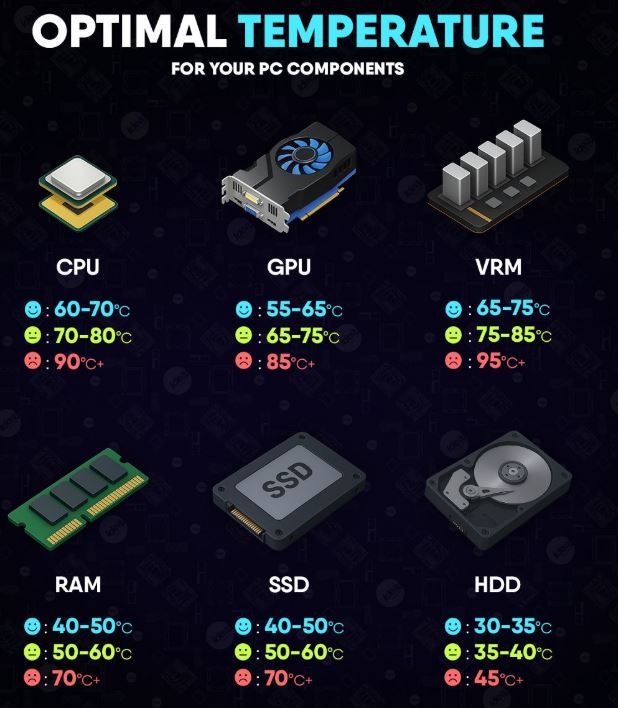
The temperature of your GPU mainly depends on:
- the type of game you are playing,
- your graphics settings,
- airflow inside the case,
- room temperature,
- and overall GPU workload.
Modern graphics cards are designed to operate safely under high temperatures, but understanding normal GPU temperature ranges helps you know when your gaming setup is overheating.
Idle Temperatures
When your PC is idle or under very light GPU usage, most modern graphics cards run their fans at extremely low speeds. Some GPUs even completely stop the fans using a Zero RPM mode for silent operation.
At idle, normal GPU temperatures usually range between:
30°C to 45°C.
Temperatures around:
50°C
can still happen if:
- many background applications are open,
- room temperature is hot,
- or your case airflow is poor.
Gaming Temperatures
During gaming, GPU usage increases heavily because videogames rely mostly on the graphics card for rendering. This naturally causes temperatures to rise much higher compared to idle usage.
Most modern GPUs are designed to safely operate around:
65°C to 85°C during gaming.
Many graphics cards also aggressively auto-boost their clock speeds to maximize FPS performance. Once temperatures approach the thermal limit, the GPU automatically reduces boost clocks to maintain safer temperatures and prevent overheating.
This is completely normal behavior in modern AMD and NVIDIA GPUs.
If you want to improve airflow and reduce gaming temperatures further, check out:
Hotspot Temperature Explained
Hotspot temperature refers to the hottest single point detected on the GPU die. The “die” is the actual silicon chip where billions of transistors constantly switch on and off during gaming workloads. Because these transistors generate massive amounts of heat, some parts of the GPU naturally become hotter than others.
Normal GPU hotspot temperatures usually range between:
75°C to 95°C.
The maximum safe hotspot limit for many modern GPUs is around:
110°C.
It is also completely normal for hotspot temperatures to read:
10°C to 25°C hotter
than your normal gaming GPU temperature. However, if hotspot temperatures become excessively high, it may indicate:
- poor airflow,
- dust buildup,
- bad thermal paste,
- or insufficient cooling inside the system.
How to Reduce GPU Temperature While Gaming
There are many ways you can reduce the temperature of your GPU while gaming. Keeping your graphics card cool even under heavy workloads is one of the best ways to maintain:
- stable FPS,
- smoother gameplay,
- lower fan noise,
- and better long-term hardware reliability.
A cooler GPU is also less likely to thermal throttle during intense gaming sessions.
Improve Airflow
Proper airflow is one of the most effective ways to reduce GPU temperatures. Whether you are using a gaming PC or a gaming laptop, airflow plays a massive role in how efficiently heat is removed from the system.
For desktop gaming PCs, airflow customization is much easier because you have more space and freedom inside the case. ATX and Micro-ATX cases can support multiple intake and exhaust fans, allowing you to create strong airflow throughout the entire system. With proper fan placement, cool air enters the case while hot air is exhausted efficiently. This helps lower:
- GPU temperatures,
- CPU temperatures,
- motherboard temperatures,
- and overall system heat.
Depending on your fan setup, your airflow configuration may fall under:
- positive airflow,
- negative airflow,
- or neutral airflow.
To fully understand airflow setup and fan placement, check out:
Gaming laptops are much more limited because of their compact design. Most gaming laptops already come with pre-installed cooling systems, usually with two internal fans and heatpipes. Since airflow space is smaller, gaming laptops naturally run hotter than gaming PCs. Even though laptop airflow is limited, keeping the vents unobstructed and cleaning dust regularly can still improve cooling performance significantly.
Undervolting
Undervolting is one of the best ways to reduce GPU temperatures without losing gaming performance. This is where you reduce the voltage being sent to the GPU while keeping the same clock speeds and overall performance.
It is essentially the opposite of overclocking.
When you undervolt your GPU:
- power consumption drops,
- heat generation reduces,
- and temperatures become much lower.
Because the GPU runs cooler, the cooling fans no longer need to spin aggressively, which also reduces fan noise during gaming.
Another major advantage is that cooler temperatures allow the GPU to maintain higher boost clocks more consistently. This helps improve gaming stability and smoother frametimes during long gaming sessions.
Undervolting is especially useful for:
- gaming laptops,
- compact PC builds,
- and GPUs that naturally run hot.
Clean Dust Regularly
Dust buildup is one of the most overlooked causes of high GPU temperatures. Even a powerful gaming setup can experience poor cooling if dust blocks airflow inside the system.
Dust can:
- clog fan blades,
- reduce fan efficiency,
- trap heat inside the case,
- and block airflow vents.
Over time, this causes both the GPU and CPU to run much hotter during gaming. It is recommended to clean your gaming PC or gaming laptop every few months to prevent heavy dust buildup and maintain proper airflow performance.
Change Thermal Paste
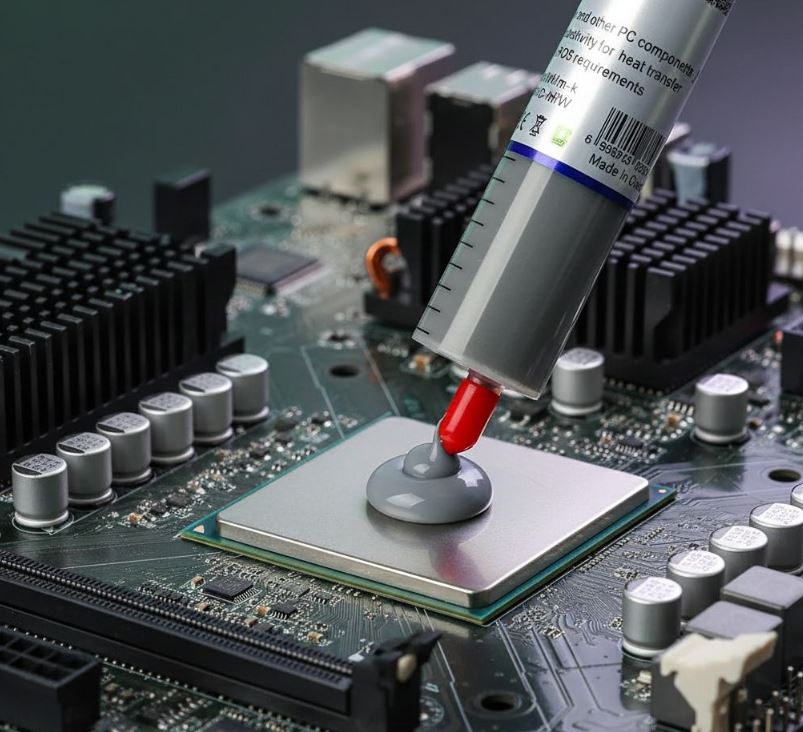
Thermal paste naturally dries out and hardens over time because of continuous heating and cooling cycles inside the GPU.
The purpose of thermal paste is to fill microscopic air gaps between the GPU die and the heatsink. Air is a very poor heat conductor, so these tiny gaps reduce cooling efficiency if left uncovered.
Fresh thermal paste helps improve heat transfer from the GPU chip into the heatsink, allowing the cooling system to remove heat much more effectively. Replacing old thermal paste can sometimes reduce GPU temperatures significantly, especially on older graphics cards and gaming laptops.
Adjust Fan Curves
Custom fan curves are another excellent way to reduce GPU temperatures. A fan curve controls how fast your GPU fans spin depending on the GPU temperature.
Instead of waiting for temperatures to become extremely high, a custom fan curve allows the fans to react much earlier and cool the GPU more aggressively. A balanced fan curve setup usually looks like this:
- Idle Stage (0°C–50°C): Fans remain between 0%–30% for silent operation during light tasks.
- Gaming Stage (55°C–75°C): Fan speed ramps up aggressively between 40%–75% to handle gaming workloads efficiently.
- Emergency Stage (80°C+): Fans immediately jump to 100% speed to prevent dangerous overheating and thermal throttling.
A proper fan curve can greatly improve:
- gaming stability,
- cooling responsiveness,
- and long-term GPU temperatures.
If you want to improve overall gaming system cooling further, also check out:
Common Mistakes That Increase GPU Temperatures
Poor Airflow Inside the PC Case
One of the biggest mistakes gamers make is using poor airflow setups inside the PC case. Some gamers install very few intake fans or use cases with restricted airflow panels, causing hot air to remain trapped around the GPU.
When airflow is poor, the graphics card struggles to cool itself properly, especially during long gaming sessions or when playing demanding AAA games.
Blocking Laptop Air Vents
Gaming laptop users often place their laptops on:
- beds,
- pillows,
- or soft surfaces
which blocks the bottom air vents completely. This prevents proper airflow into the cooling system and causes temperatures to rise very quickly. Gaming laptops should always be placed on:
- hard surfaces,
- cooling pads,
- or elevated stands
for better airflow.
Ignoring Dust Buildup
Many gamers ignore dust for too long. Dust buildup inside the GPU heatsink, cooling fans and case filters can drastically reduce airflow performance. Even high-end gaming systems can overheat if:
- fan blades become clogged,
- vents are blocked,
- or airflow paths are filled with dust.
Regular cleaning is extremely important for maintaining stable GPU temperatures.
Overclocking Without Proper Cooling
Overclocking the GPU without improving airflow and cooling is another common mistake. Higher clock speeds increase:
- power usage,
- heat generation,
- and overall thermal stress.
Without proper cooling, the GPU can quickly reach dangerous temperatures and start thermal throttling aggressively.
Using Aggressive Graphics Settings
Some gamers push maximum graphics settings on weaker GPUs without understanding the thermal impact. Running ultra settings, ray tracing and uncapped FPS can place massive strain on the graphics card, especially on budget GPUs.
Lowering:
- unnecessary graphics settings,
- frame rate limits,
- or ray tracing options
can significantly reduce GPU temperatures while maintaining smooth gameplay.
Conclusion
GPU temperatures play a massive role in gaming performance, system stability and long-term hardware lifespan. When the graphics card becomes too hot, performance drops, thermal throttling starts and the overall gaming experience becomes unstable.
Fortunately, there are many effective ways to reduce GPU temperatures while gaming. Improving airflow, cleaning dust, adjusting fan curves, undervolting and maintaining proper cooling can all help keep your graphics card running cooler and more efficiently.
A properly cooled GPU helps maintain:
- stable FPS,
- smoother frametimes,
- quieter fan operation,
- and better long gaming performance.
If you want to further improve your gaming setup and cooling performance, also check out:
- Best Budget Nvidia GPU for FPS Games (2026 Guide)
- Best Budget AMD GPUs for FPS Games (2026 Guide)
- Best Monitor Settings for FPS Games (2026 Guide)
for more gaming optimization and hardware performance guides.