
The CPU is considered the brain of the PC because it receives instructions from both hardware and software, processes data and executes commands throughout the entire system. Whether you are gaming, streaming, multitasking or rendering, the CPU is constantly working in the background to keep everything running smoothly.
Because of this, it is very important to keep your CPU in good condition, especially during heavy workloads and long gaming sessions. One of the biggest enemies of CPU performance is heat. When the processor starts overheating, the system automatically reduces the CPU’s clock speeds and workload to protect the hardware from permanent damage. This safety mechanism is known as thermal throttling.
When thermal throttling happens, you may start experiencing:
- FPS drops,
- stuttering,
- unstable frametimes,
- and slower overall system performance.
This is why cooling should always be prioritized when building or optimizing a gaming PC. A properly cooled CPU helps maintain:
- stable performance,
- smoother gameplay,
- lower temperatures,
- and better long-term hardware lifespan.
In this article, you will learn several effective ways to reduce CPU temperatures while gaming and improve the overall stability of your gaming setup.
Why CPU Temperatures Matter
Your CPU temperatures matter a lot because high temperatures can directly cause thermal throttling, which drastically reduces performance during gaming in order to protect the processor from damage.
When thermal throttling starts, your FPS may suddenly drop and rise repeatedly, creating inconsistent gaming performance. And in competitive games, stable FPS is far more important than unstable high FPS. It is much better to maintain a consistent 100 FPS than jumping between 200 FPS and 50 FPS during intense in-game fights.
As CPU temperatures continue rising, you may also begin experiencing:
- stuttering,
- unstable frametimes,
- input delay,
- and slower overall system responsiveness,
even during lighter workloads or idle usage.
In more serious situations, extreme overheating can cause the entire PC to suddenly shut down as a safety measure to prevent permanent hardware damage. Constant overheating over long periods also increases wear and tear on the processor, motherboard and surrounding components.
This is why choosing the right cooling setup for your gaming PC is extremely important. A good cooling system helps maintain:
- stable CPU performance,
- smoother gameplay,
- lower temperatures,
- and better long-term hardware reliability.
If you want help choosing the right cooling solution for your setup, check out:
Normal CPU Temperatures Explained
Understanding normal CPU temperatures is important because modern processors are designed to safely operate under different workloads. CPU temperatures will constantly change depending on:
- background tasks,
- gaming workload,
- cooling performance,
- room temperature,
- and CPU power usage.
Idle Temperatures
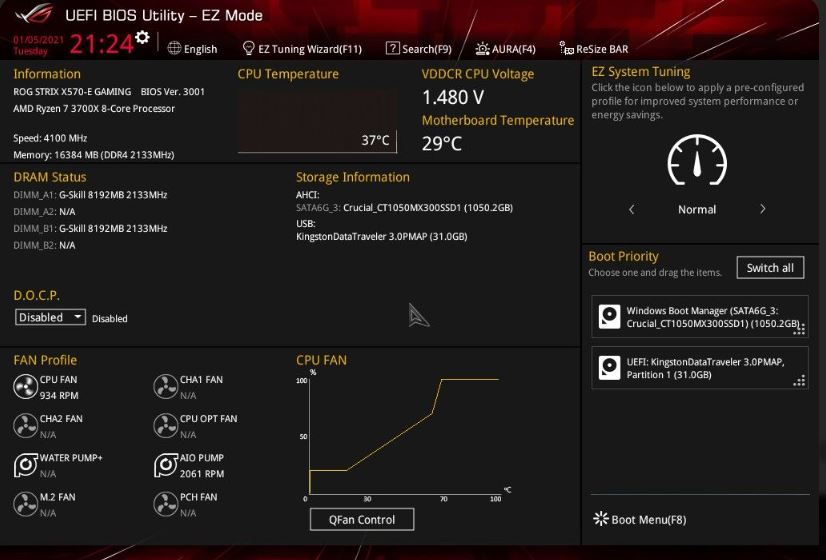
At idle state, where only normal background applications and light system tasks are running, CPU temperatures between:
30°C – 45°C
are completely normal and safe.
In some situations, temperatures can rise closer to:
50°C
especially when:
- many background apps are open,
- airflow is poor,
- or room temperature is hot.
Modern CPUs also constantly boost clocks in the background, so small temperature spikes during idle usage are completely normal.
Gaming Temperatures
During gaming or other heavy workloads, the CPU naturally generates much more heat because it is processing:
- game physics,
- AI calculations,
- background system tasks,
- and communication with the GPU.
Under gaming workloads, sustained temperatures between:
65°C – 85°C
are considered normal for most modern CPUs.
In fact, modern AMD Ryzen and Intel processors are designed to safely operate within this range while maintaining maximum gaming performance.
If you want better cooling performance and airflow optimization, also check out:
Maximum Temperature Range
Once CPU temperatures start reaching:
90°C – 105°C,
the processor enters what many gamers call the “danger zone.”
At this point, the CPU will begin thermal throttling by automatically reducing clock speeds and power usage to protect itself from physical damage.
If temperatures remain extremely high for long periods, gaming performance becomes unstable and the system may eventually:
- crash,
- freeze,
- or shut down completely.
Overclocked CPU Temperatures
Overclocked CPUs behave very differently under heavy workloads compared to stock processors.
When a heavy workload suddenly appears, temperatures can spike from idle to maximum almost instantly. This happens because the CPU generates heat faster than the cooler can absorb and dissipate it.
Overclocked systems also tend to have:
- higher idle temperatures,
- higher power consumption,
- and more aggressive voltage usage.
This is mainly because power-saving states like C-States are often reduced or disabled during manual overclocking.
As a result, many overclocked CPUs idle around:
45°C – 55°C
even while simply sitting on the desktop.
This is why proper cooling, airflow and fan tuning become extremely important when overclocking modern gaming CPUs.
How to Reduce CPU Temperature While Gaming
To lower your CPU temperatures, you can target two main areas:
- improving external heat removal,
- or reducing internal heat generation.
Both methods work together to keep your gaming system cooler, quieter and more stable during heavy workloads.
Physical Fixes (Removing Heat Faster)
Clean Dust Regularly
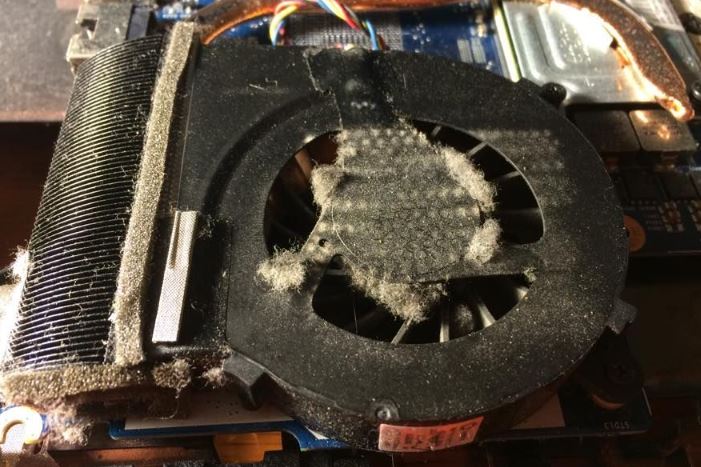
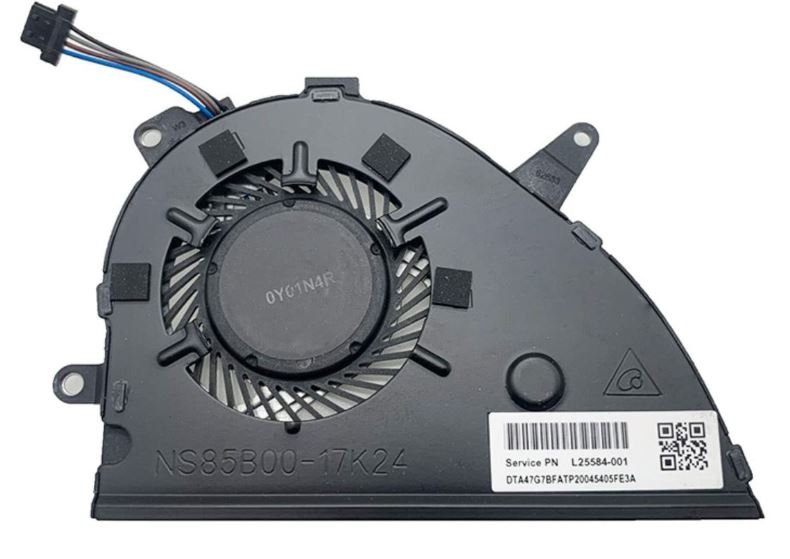
Dust acts like a thermal blanket inside your PC. It traps heat and blocks air from passing properly through:
- CPU coolers,
- radiators,
- case fans,
- and airflow vents.
Over time, dust buildup can drastically reduce cooling efficiency and increase CPU temperatures during gaming.
It is recommended to clean:
- dust filters,
- fan blades,
- heatsinks,
- and radiators
every 3 to 6 months using compressed air or a soft brush.
Improve Airflow
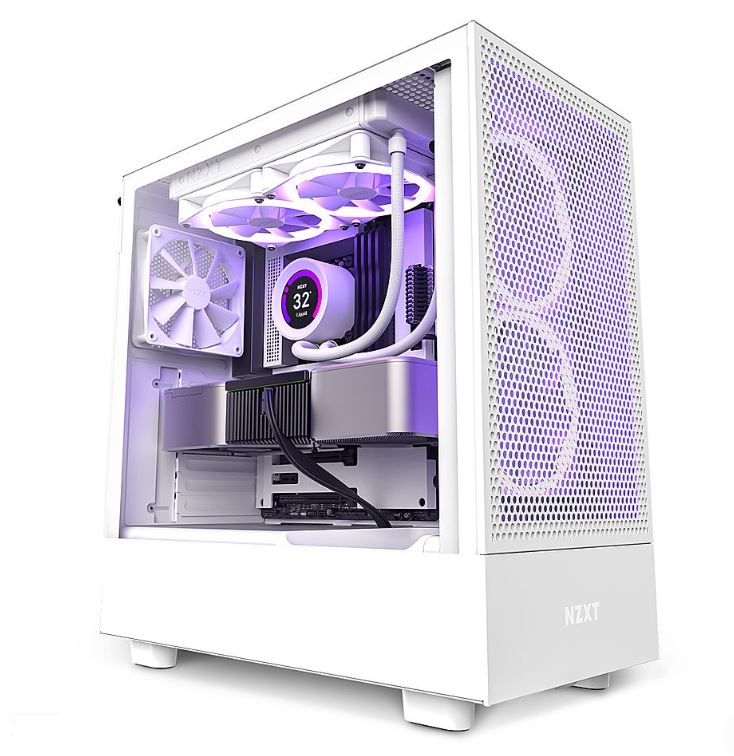
Fresh cool air needs to constantly replace the hot air trapped inside the PC case. Without proper airflow, heat builds up around the CPU and GPU very quickly.
A balanced airflow setup is extremely important:
- front and bottom fans should pull cool air into the case,
- while rear and top fans should exhaust hot air out.
You should also avoid placing your PC:
- too close to walls,
- inside enclosed desks,
- or directly on thick carpet
because this can restrict airflow significantly.
Reduce Room Temperature
Your CPU cooler cannot cool the processor below the surrounding room temperature. If your room itself is very hot, your CPU temperatures will naturally remain higher during gaming.
For example:
- a PC in a 20°C room will run noticeably cooler than the same PC in a 30°C room.
Simple things like:
- opening windows,
- using air conditioning,
- improving room ventilation,
- or keeping the PC away from direct sunlight
can noticeably lower CPU temperatures.
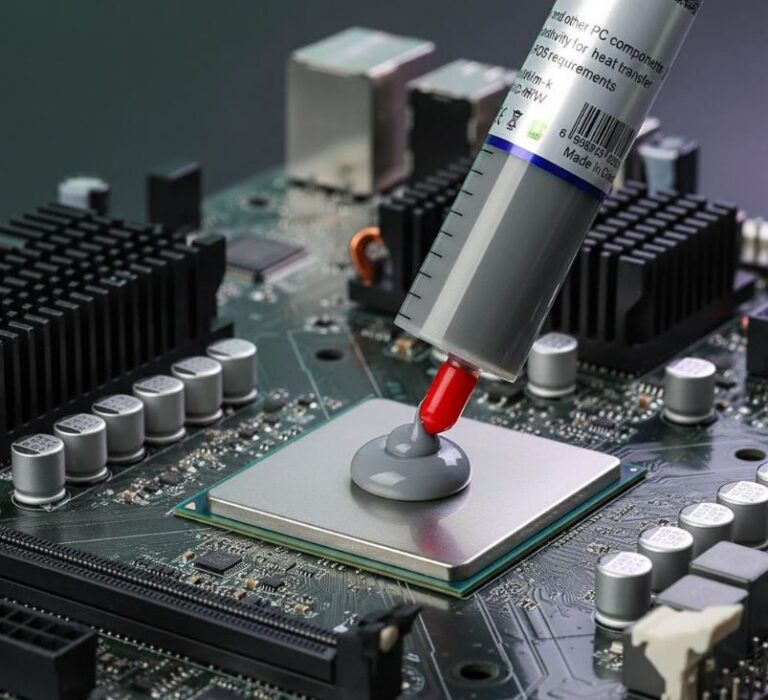
Reapply Thermal Paste
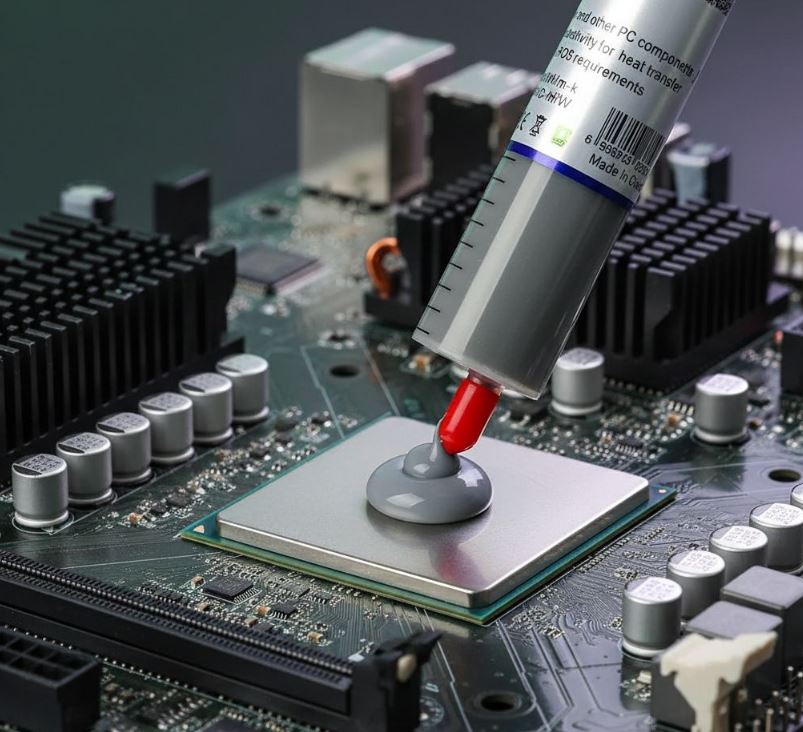
Thermal paste fills microscopic air gaps between the CPU surface and the cooler block. Over time, the paste dries out and becomes less effective at transferring heat.
Usually after:
2 to 4 years,
old thermal paste can begin causing noticeably higher CPU temperatures.
Cleaning off the old thermal paste with isopropyl alcohol and applying a fresh high-quality thermal compound can significantly improve cooling performance.
Upgrade the CPU Cooler
Sometimes the cooler itself is simply not strong enough for the processor being used.
Stock coolers especially struggle with:
- high-end CPUs,
- overclocked processors,
- and long gaming sessions.
Larger CPU coolers provide:
- more heatsink surface area,
- stronger airflow,
- and better heat dissipation.
Upgrading to:
- a dual tower air cooler,
- or a 240mm+ AIO liquid cooler
can massively reduce CPU temperatures under heavy gaming workloads.
Digital & Software Tweaks (Generating Less Heat)
Close Background Application
Many unnecessary programs continue running in the background while gaming. Applications like:
- browsers,
- launchers,
- RGB software,
- recording tools,
- and startup apps
can constantly use CPU resources even when you are not actively using them.
This prevents the CPU from entering lower power states and increases temperatures unnecessarily.
Before gaming, it is a good idea to close unneeded background programs using Task Manager.
Undervolting
Undervolting is one of the best advanced methods for reducing CPU temperatures without sacrificing performance.
This works by lowering the electrical voltage sent to the CPU while keeping clock speeds nearly the same.
Since heat generation increases heavily with voltage, undervolting can drastically lower:
- CPU temperatures,
- fan noise,
- and power consumption.
Modern tools like:
- AMD Curve Optimizer,
- Intel XTU,
- and BIOS voltage controls
allow gamers to safely undervolt their processors.
Another major advantage is that cooler CPUs usually maintain higher boost clocks more consistently because they have more thermal headroom available during gaming.
Common Mistakes That Increase CPU Temperatures
Using Weak Stock Coolers
One of the biggest mistakes gamers make is pairing powerful CPUs with weak stock coolers. Modern processors, especially high-end Intel and Ryzen CPUs, generate a lot of heat during gaming and multitasking.
A weak cooler quickly becomes overwhelmed, causing:
- higher temperatures,
- louder fan noise,
- and thermal throttling.
If you are using:
- overclocked CPUs,
- high refresh rate gaming,
- or demanding AAA games,
a stronger air cooler or AIO liquid cooler is highly recommended.
Applying Too Much or Too Little Thermal Paste
Thermal paste is very important for proper heat transfer between the CPU and cooler. Applying too much paste can create insulation, while applying too little leaves air gaps that reduce cooling efficiency.
A small pea-sized amount is usually enough for most modern processors.
Ignoring Dust Buildup
Dust buildup is another major problem many gamers overlook. Dust blocks airflow and reduces the effectiveness of:
- fans,
- heatsinks,
- and radiators.
Over time, this causes the CPU cooler to work much harder while temperatures continue increasing.
Cleaning your system regularly is one of the easiest ways to maintain stable CPU temperatures.
Conclusion
CPU temperatures play a massive role in gaming stability, overall system responsiveness and long-term hardware reliability. When the processor becomes too hot, thermal throttling begins and gaming performance can quickly become unstable.
Fortunately, there are many effective ways to reduce CPU temperatures while gaming. Improving airflow, cleaning dust, upgrading the cooler, undervolting and optimizing fan curves can all help lower temperatures significantly.
A properly cooled CPU helps maintain:
- stable FPS,
- smoother gameplay,
- lower fan noise,
- and better long gaming performance.
If you want to further optimize your gaming setup, also check out:
- Best Motherboards for FPS Gaming (2026 Guide)
- Best Budget RAM for FPS Gaming (2026 Guide)
- Best SSD for FPS Gaming (2026 Guide)
for more gaming hardware and optimization guides.