
If you’re wondering how to increase FPS in Apex Legends on your laptop…
Lag and low FPS are some of the biggest reasons laptop gamers consider switching to a desktop. But the truth is—you don’t always need a new PC to fix performance issues.
If you’re struggling with low FPS in Apex Legends, there are several tweaks you can make to significantly improve performance on your current laptop.
Gaming laptops do have limitations. Components like the GPU, CPU, and sometimes even RAM are tightly integrated, making upgrades difficult or impossible. However, with the right settings and optimizations, you can still achieve smoother gameplay and more stable FPS.
Why Your FPS Is Low on Laptop.
Understanding the cause of low FPS is the first step to fixing it. Here are the most common reasons:
Weak GPU and CPU.
The GPU and CPU are the most important components for gaming performance. Budget laptops often come with lower-end hardware, which can struggle to maintain high FPS in demanding games like Apex Legends.
If you’re using an entry-level GPU like a GTX 1650 or RTX 2050, you may experience FPS drops, especially during intense fights or crowded areas.
If you’re unsure whether your laptop is powerful enough, check out this guide:
Best Gaming Laptop Under $800 for Apex Legends.
Low RAM (8GB Issue)
RAM plays a big role in overall performance. It handles:
- Background apps
- Game processes
- Multitasking
In modern gaming, 8GB RAM is often not enough. Most games, including Apex Legends, perform much better with 16GB RAM.
Upgrading RAM is one of the easiest ways to boost FPS and reduce stuttering
Overheating (Thermal Throttling)
Overheating is one of the biggest problems with gaming laptops.
Because of their compact design:
- Airflow is limited
- Heat builds up quickly
- Performance drops (thermal throttling)
To fix this:
- Clean dust from fans regularly
- Replace thermal paste (every 6–12 months if possible)
- Use a cooling pad
Better cooling = more stable FPS
Poor In-Game Settings
Some settings in Apex Legends are purely visual and can heavily reduce performance.
If your settings are too high:
- Your GPU works harder
- FPS drops significantly
Lowering unnecessary settings can instantly boost FPS.
Best In-Game Settings for Higher FPS
Recommended settings in Apex Legends.
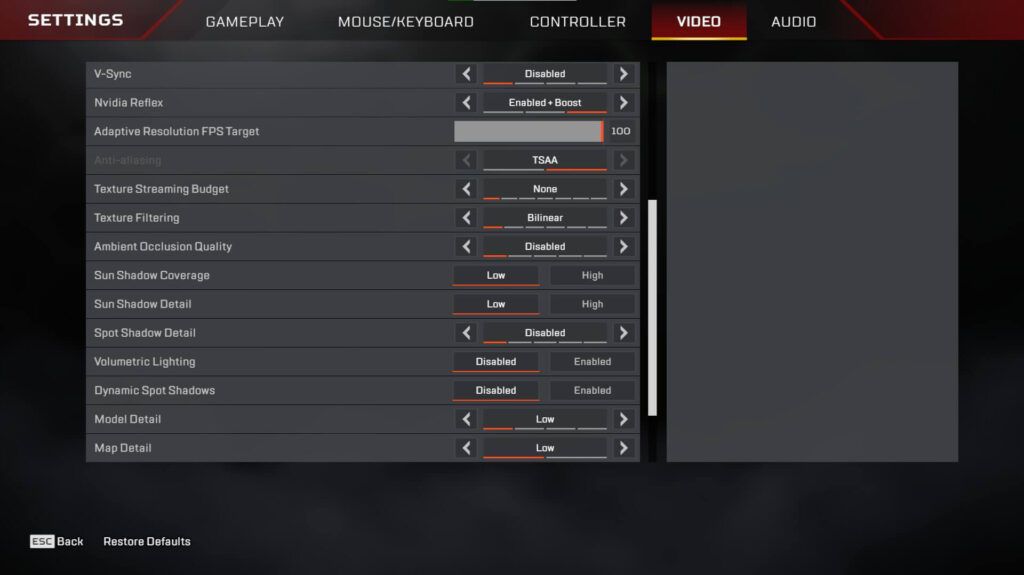
To get the best performance in Apex Legends, lowering certain graphics settings can significantly increase and stabilize your FPS.
Here are the most important settings to adjust:
- V-Sync → Disabled
- NVIDIA Reflex → Enabled + Boost
- Texture Streaming Budget → None or 2GB
- Texture Filtering → Bilinear
- Ambient Occlusion Quality → Disabled
- Sun Shadow Coverage → Low
- Sun Shadow Detail → Low
- Spot Shadow Detail → Disabled
- Volumetric Lighting → Disabled
- Dynamic Spot Shadows → Disabled
- Model Detail → Low
- Map Detail → Low
- Effects Detail → Low
- Impact Marks → Disabled
- Ragdolls → Low
In general, lowering most settings will improve FPS without heavily affecting gameplay. However, keep NVIDIA Reflex on “Enabled + Boost” for smoother performance and reduced input lag.
Want an in-depth guide for settings for apex legends check out, the best apex legends settings for low end laptop.
NVIDIA Control Panel Settings.
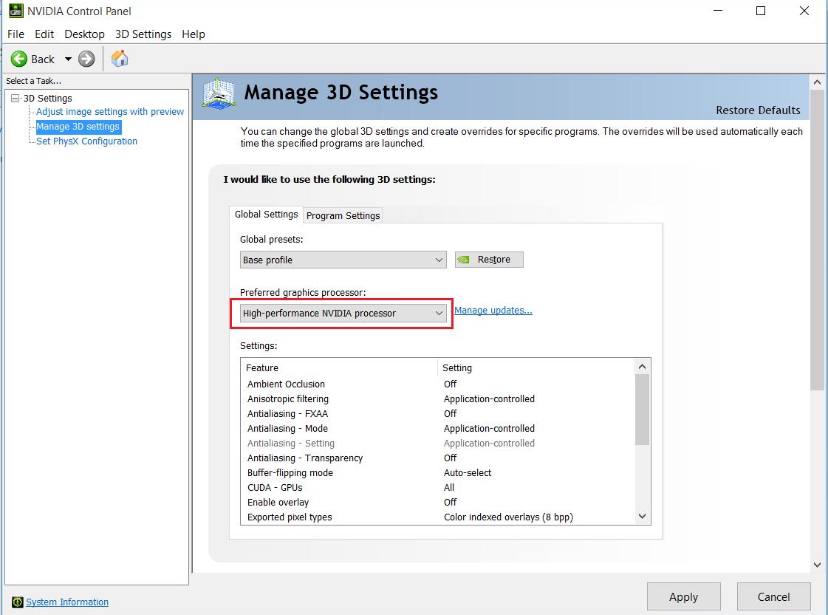
If your laptop has an NVIDIA GPU, optimizing your control panel settings can further improve performance.
Steps:
Open NVIDIA Control Panel
Go to:
3D Settings → Manage 3D Settings
Recommended Settings:
- Preferred Graphics Processor → High-performance NVIDIA processor
- Low Latency Mode → Ultra
- Max Frame Rate → Off
- Power Management Mode → Prefer Maximum Performance
- Texture Filtering Quality → High Performance
These settings ensure your laptop uses its full GPU power for gaming instead of saving energy.
Windows Optimization Tips
Optimizing your system can also improve FPS and reduce stuttering.
Do the following:
- Close unnecessary background apps
- Uninstall unused programs
- Disable startup apps:
- Task Manager → Startup → Disable unwanted apps
- Set power plan to High Performance
- Keep your NVIDIA drivers up to date
A clean and optimized system can make a noticeable difference in gaming performance.
These optimizations alone can significantly improve FPS, especially on budget gaming laptops.
Additional Tips to Improve FPS.
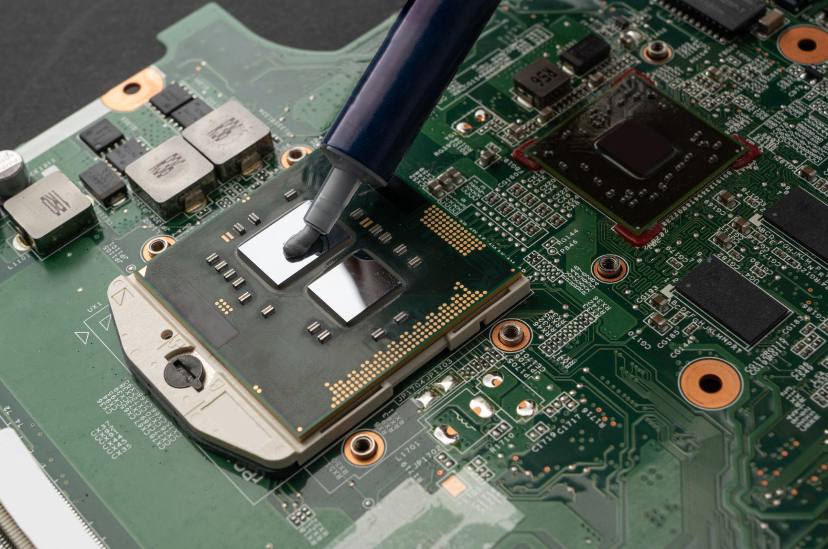
Cooling and Performance
Keeping your laptop cool is essential for stable FPS. When your system overheats, performance drops due to thermal throttling.
Here’s what you should do:
- Clean your laptop fans regularly
- Use a cooling pad (external fans help improve airflow)
- Avoid playing in hot or poorly ventilated environments
Lower temperatures = smoother gameplay and fewer FPS drops
Upgrade Options (Optional but Powerful)
If you want even better performance, consider these upgrades:
- Upgrade RAM to 16GB → Improves multitasking and reduces stuttering
- Use an SSD → Faster loading times and smoother overall system performance
- Use an external monitor → Can improve your gaming experience and reduce strain on your laptop screen
These upgrades can significantly boost performance, especially on budget laptops
Final Verdict
With the right optimizations, even a budget laptop can run Apex Legends smoothly and competitively.
By adjusting your in-game settings, optimizing NVIDIA Control Panel, and improving your system performance, you can achieve higher FPS, reduced lag, and a much better overall gaming experience.
You don’t need a high-end gaming PC to enjoy smooth gameplay—you just need the right setup.
If your system is struggling, upgrading to something like the best gaming laptop under $700 for esports can make a big difference.”
Want to reduce input lags in fast paced FPS games check out my guide on how to reduce input lags for FPS games.